For Admins
Member Administration 👤⚙️
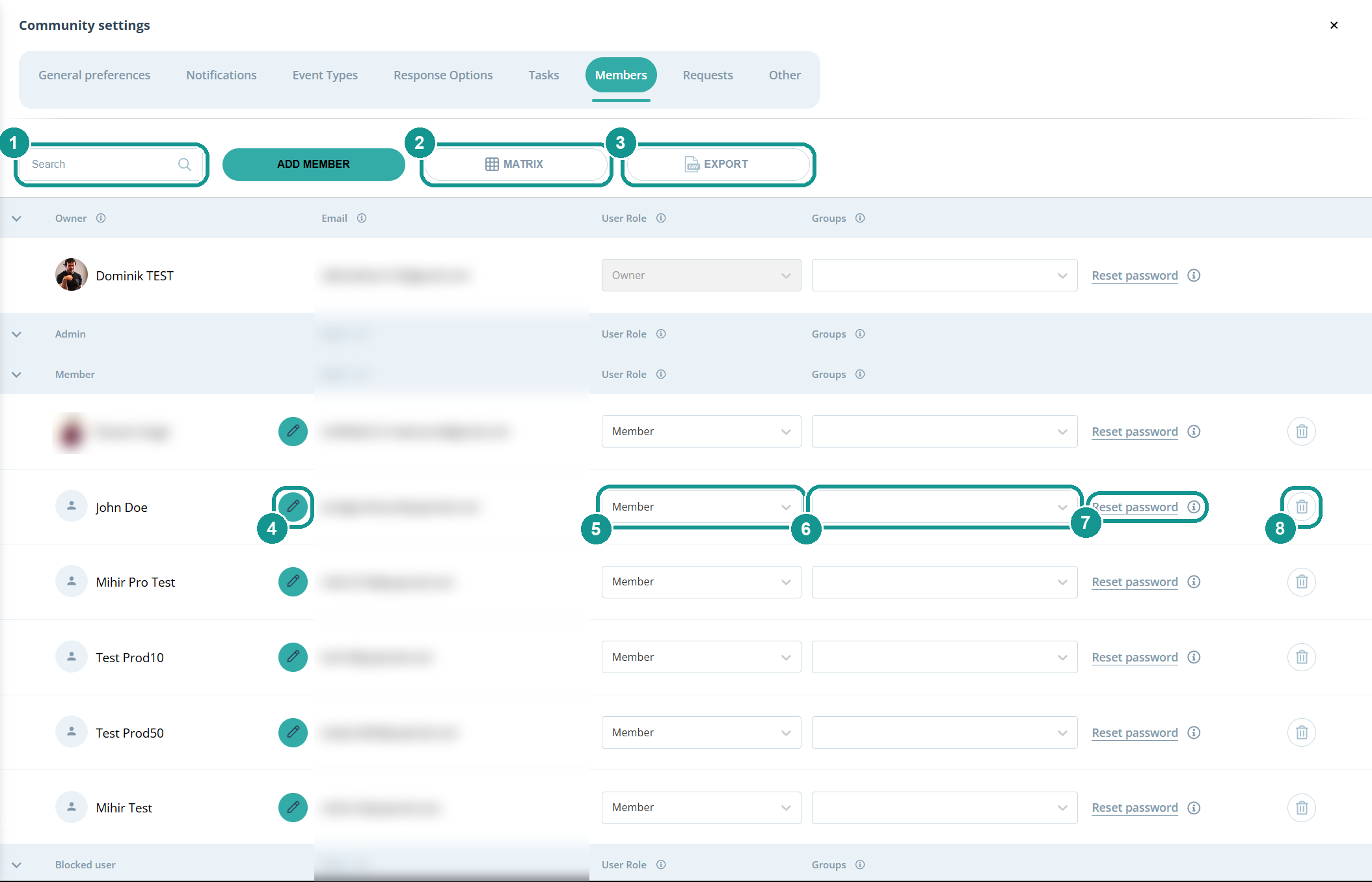
In the Members tab of the community settings, you manage everyone in your community in one place: roles, groups, profiles, passwords and the export. Open it with the gear ⚙️ next to your community's name. The list is sorted by role: owner, admin, member and blocked user.
What can I do in the Members tab?
- Search (1): Find a person by name.
- Matrix (2): Assign people to several communities. More: Member Matrix 👤🔀
- Export (3): Download the member list as a CSV file.
- Pencil (4): Edit the person's profile. More: Edit Member Profiles 👤🛠️
- User Role (5): Make someone an admin or a member, or lock them out as a Blocked user. More: Roles and permissions 🛂
- Groups (6): Add the person to groups or take them out.
- Reset password (7): Gumb sends the person a link to set a new password.
- Trash can (8): Remove the person from your community.
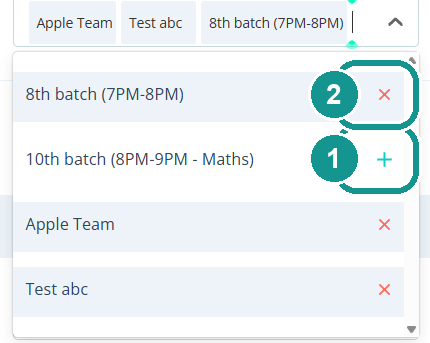
How to change someone's groups
- In the Groups column next to the person, click the field.
- + adds a group (1), x takes the person out of a group (2).
The change applies right away, there's no save button.
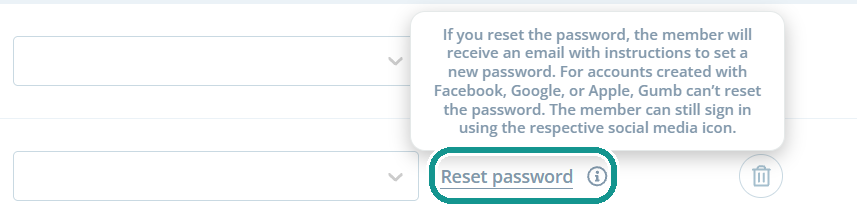
How do I reset a member's password?
Click Reset password next to the person. Gumb sends them an email with a link to set a new password. This doesn't work for accounts created with Facebook, Google or Apple. Those people keep signing in with the matching icon.
How do I export the member list?
Click Export. Gumb downloads a CSV file you can open in Excel or Google Sheets. For each person it contains email, first and last name, role, groups, date of birth, phone numbers, social media profiles, address and description, where filled in.

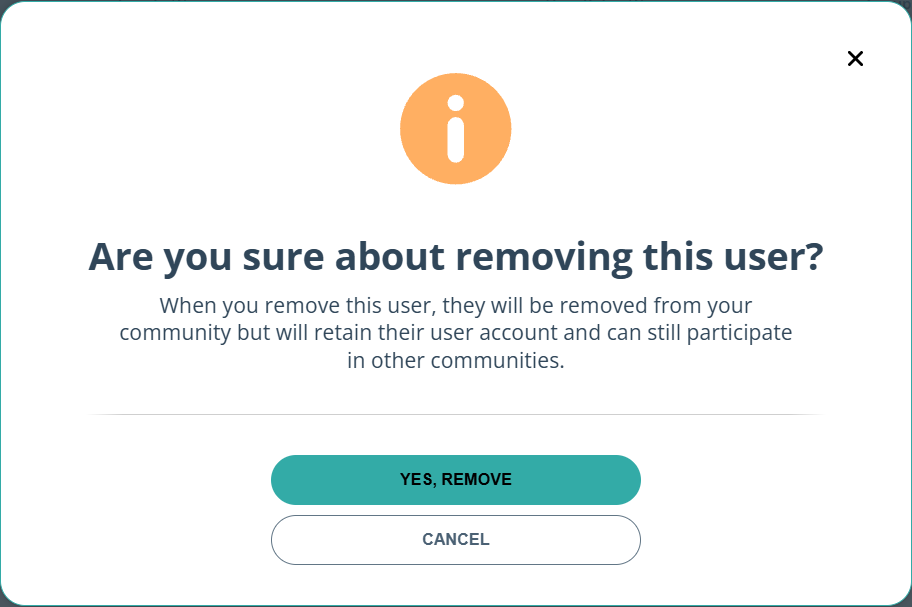
How do I remove someone from the community?
Click the trash can next to the person and confirm with Yes, remove. The person no longer has access to your community. Their Gumb account stays, and they remain active in other communities. To only lock someone out, set their role to Blocked user.