Troubleshooting
iCal Apple Calendar not syncing❓
Our app reliably sends your events to Apple Calendar. If you don't see updates (location, time, etc.), it's due to your calendar's refresh settings - not Gumb.
1. Check & adjust refresh interval
- Open Calendar on macOS.
- Right-click your Gumb calendar > Get Info.
- Set Auto-refresh to Every 5 Minutes.
- Less than 5 minutes isn't allowed - Apple enforces this.
- Close the window and wait up to 5 minutes for the next sync.
2. Visibility & manual refresh
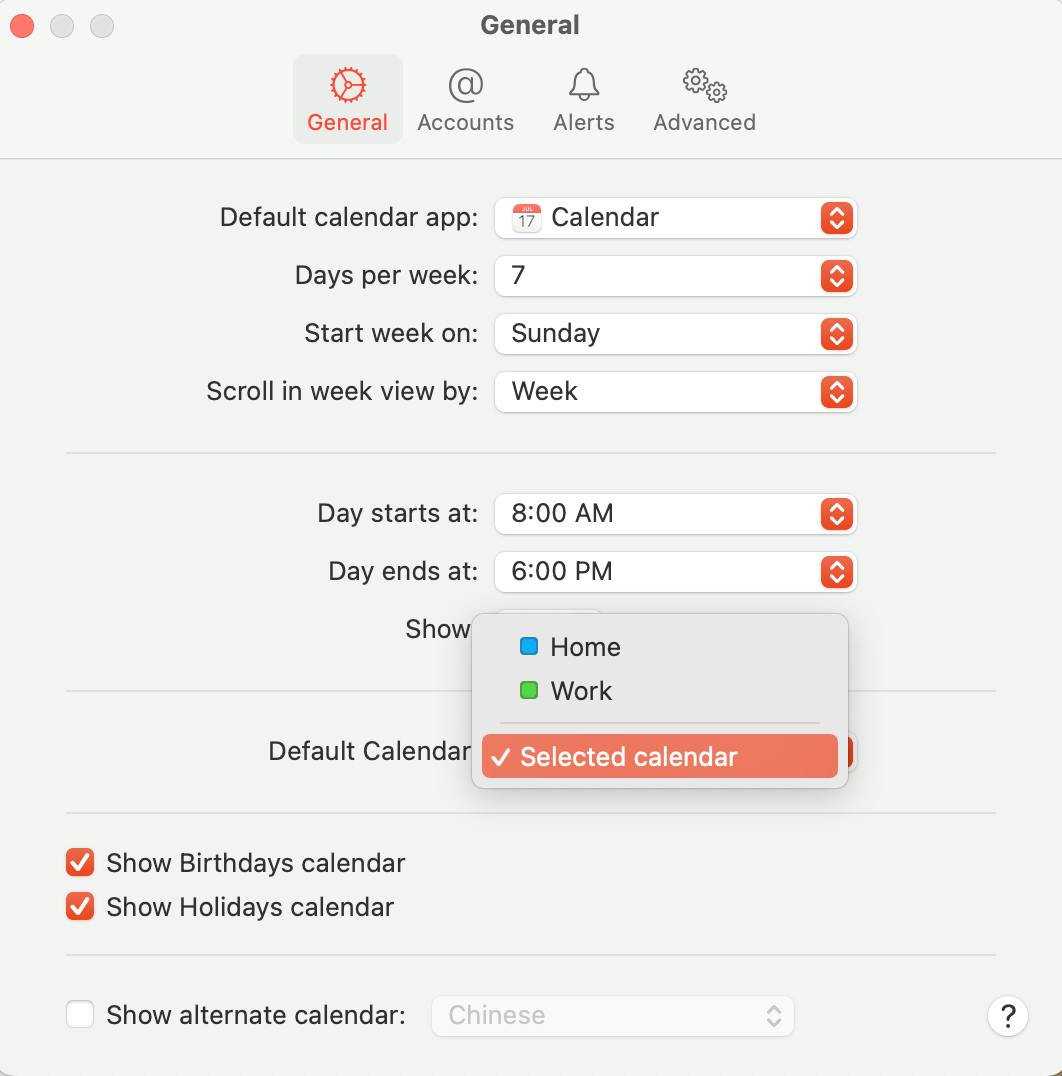
- Ensure visibility: In the Calendar menu, make sure your Gumb calendar is checked.
- Force refresh: In the Calendar list, pull down to trigger an immediate update.
- Connectivity check: Disable Airplane Mode and confirm you're online.
3. Restart app & renew subscription
- Quit the Calendar app completely and reopen it.
- Still not working?
- Right-click the calendar > Unsubscribe
- Re-subscribe to Gumb (follow the connection guide).
4. Check other devices (iOS/iPadOS)
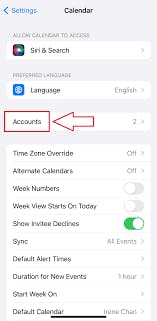
- Go to Settings > Calendar > Accounts and verify your iCal subscription is active.
- In the Calendar app, pull down to refresh.
🎯 Expected result:
After adjusting and refreshing, changes appear within 5 minutes. If issues persist, renew your subscription, restart the app-or contact us via our support form.
Official Apple Support Tutorial: Subscribe to calendars on Mac