For Members
Apple Calendar (iCal) Connection 🍏
Stay current with Gumb events on your Apple devices through iCloud Calendar subscriptions. This guide helps you start and manage your Gumb subscriptions seamlessly across devices.
Preparing Your Devices
- Update to the latest version of iOS on your iPhone and the latest version of macOS on your Mac to ensure compatibility with Gumb.
- Make sure you're signed in to iCloud with the same Apple Account on all of your devices.
- Before you can see a calendar subscription on all your devices, subscribe to the calendar on your Mac first ⚠️. If you subscribe to the calendar on your iOS device, iCloud won't update it to your other devices.
Watch The Video
💻 Set up Gumb on your Mac/Desktop/Browser
Step 1
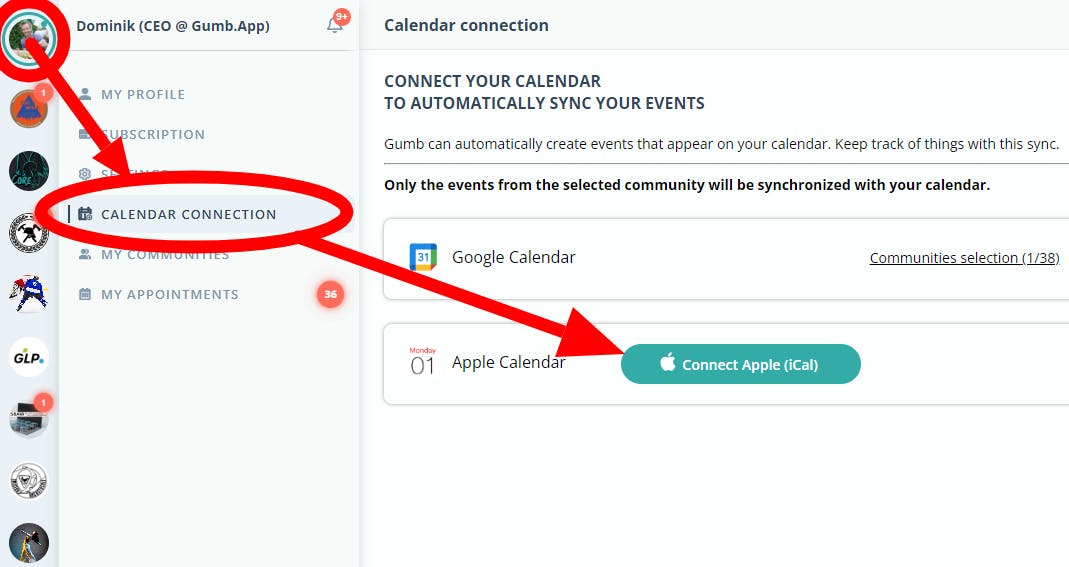
Open Gumb > User Profile > and select CALENDAR CONNECTION.
Step 2
Click on "CONNECT APPLE (iCal)" and allow permission if Apple asks.
Step 3
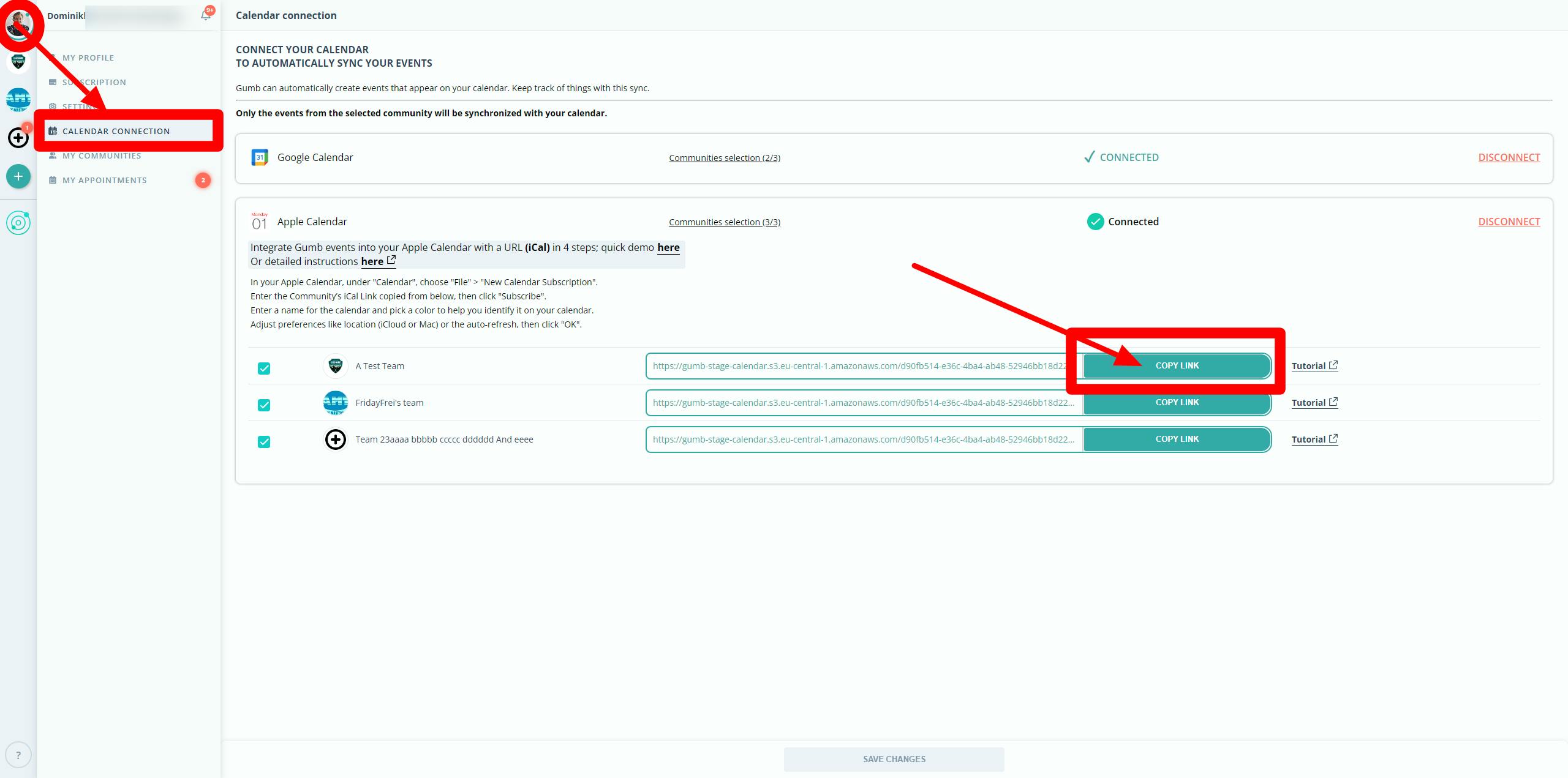
Gumb will generate a link in iCal format for each community. Copy this link to use in your Apple Calendar.
Step 4
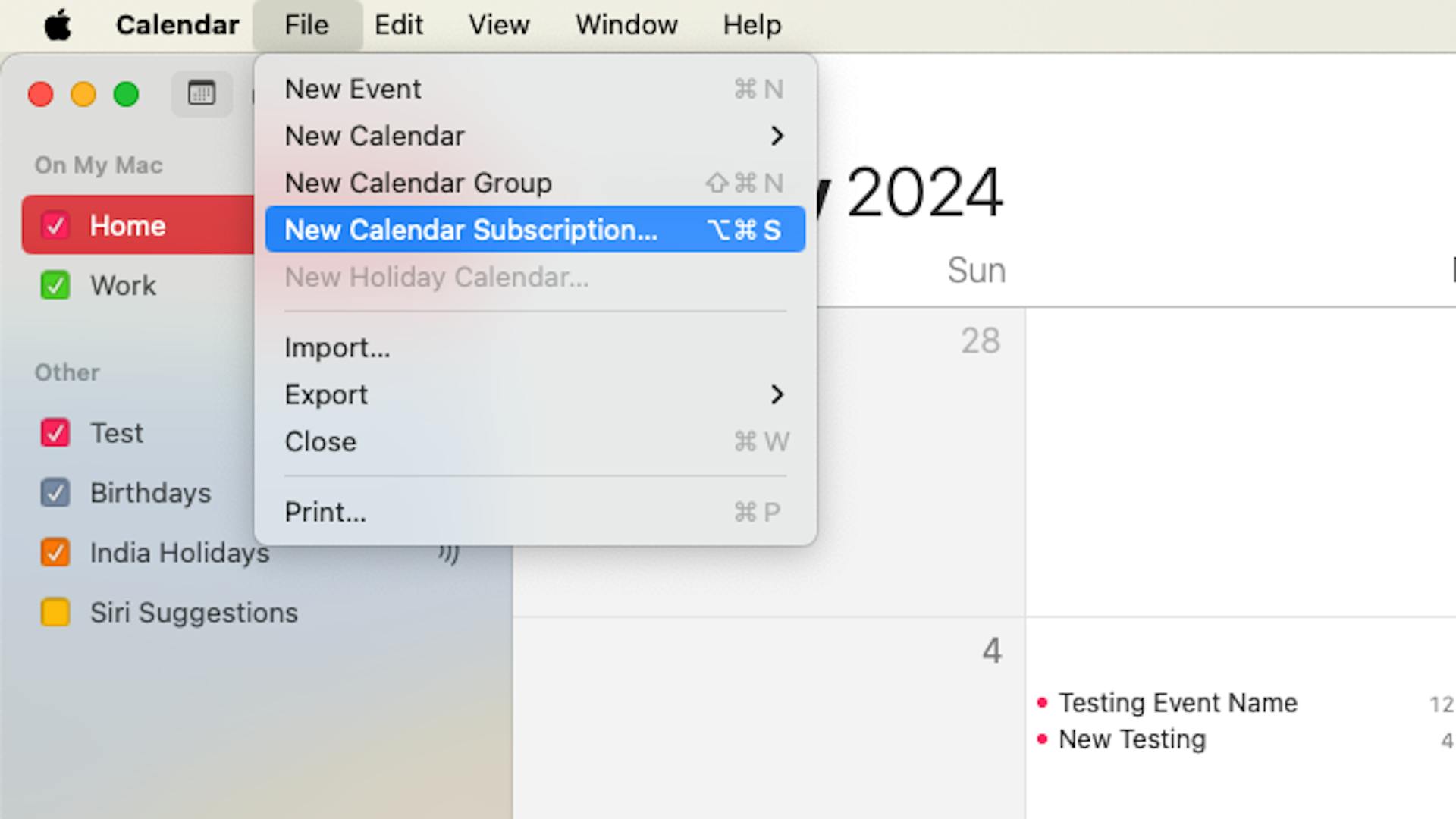
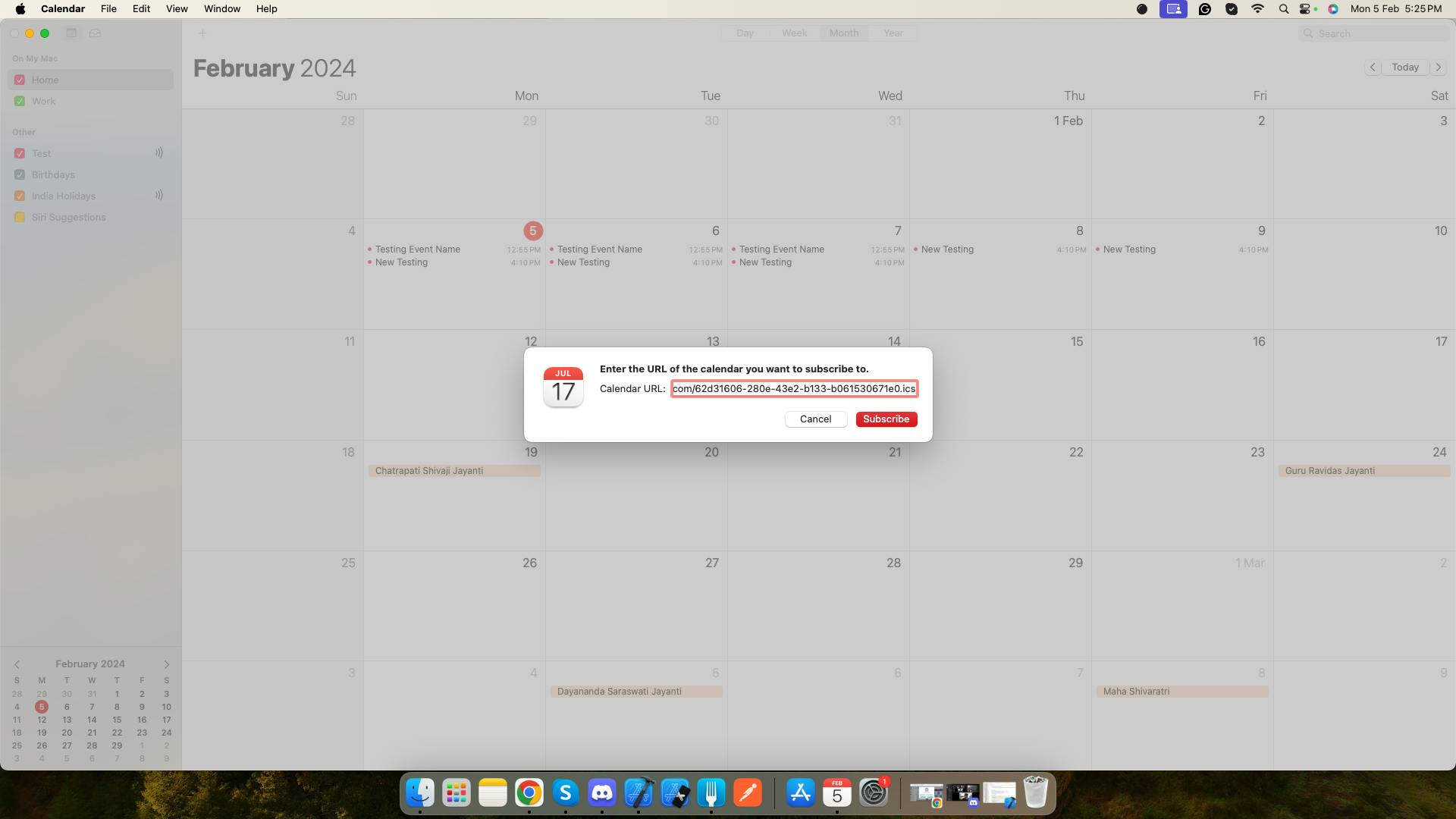
In Apple Calendar, go to "Calendar" > "File" > "New Calendar Subscription".
Step 5
Enter the copied iCal link and click "Subscribe".
Step 6
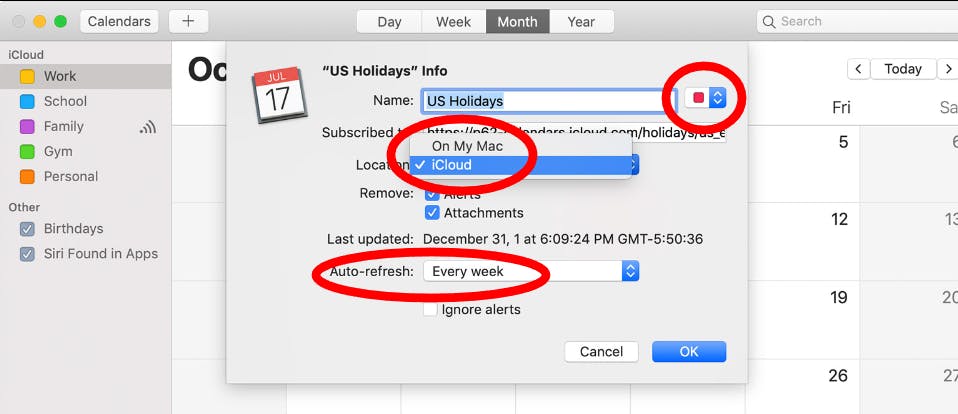
Name the calendar, choose a color, set preferences like location (iCloud or Mac), or auto-refresh, and press "OK". Done ✅. Your calendar will now sync automatically.
📱 On Your Mobile Device (iOS)
Important for ⚠️ Mac users: To ensure your calendar syncs across all devices, first subscribe on your Mac. Directly subscribing on an iOS device won't sync with iCloud on other devices.
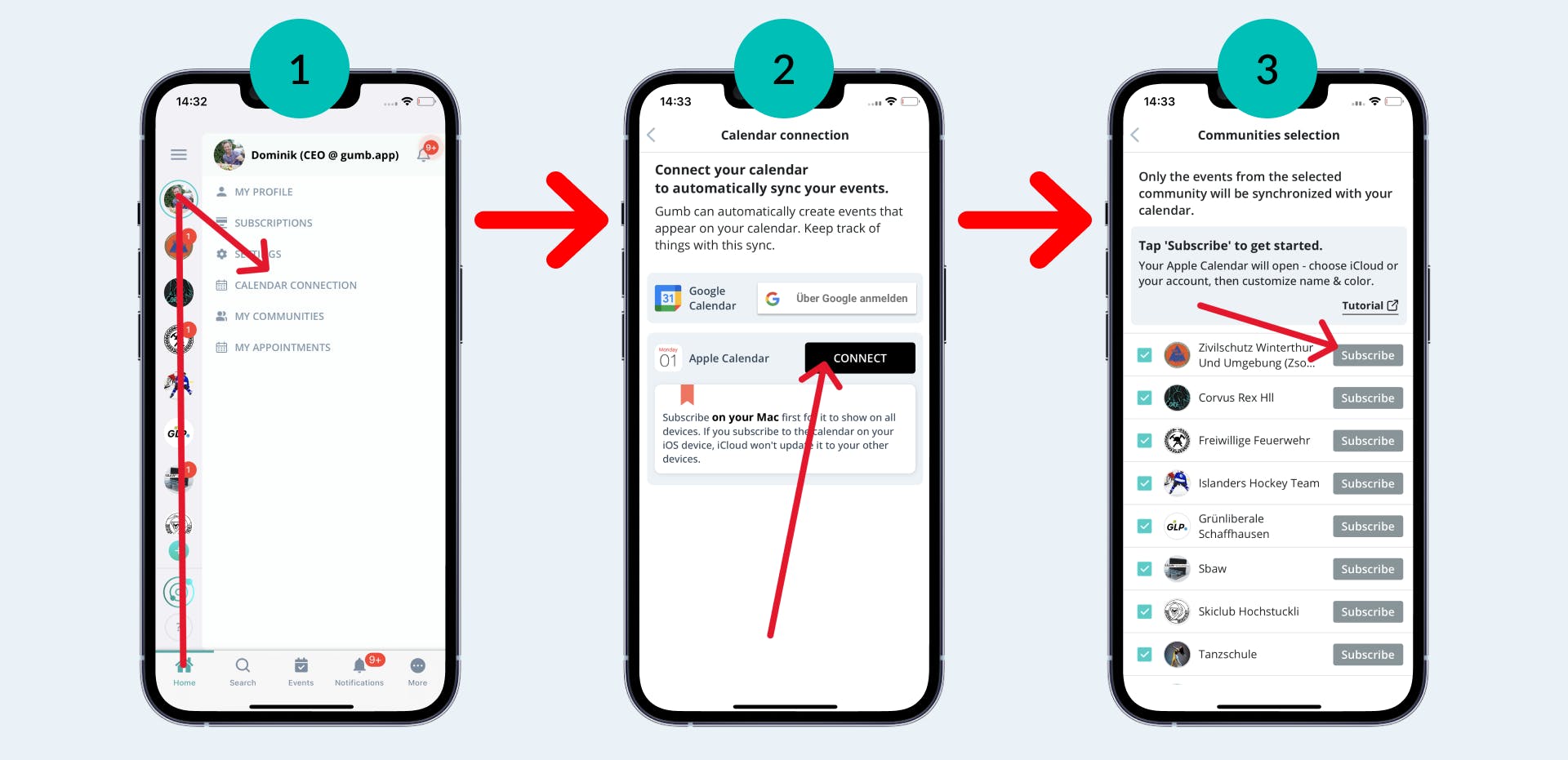
- Tap the "START" button at the bottom left of the app to begin.
- Click on your profile picture/user profile at the top corner of the app.
- Select the "CALENDAR CONNECTION" option from the list of available settings.
- Tap on "CONNECT" for the Apple Calendar.
- Gumb will create an iCal-format link for each community, tap "Subscribe" to start.
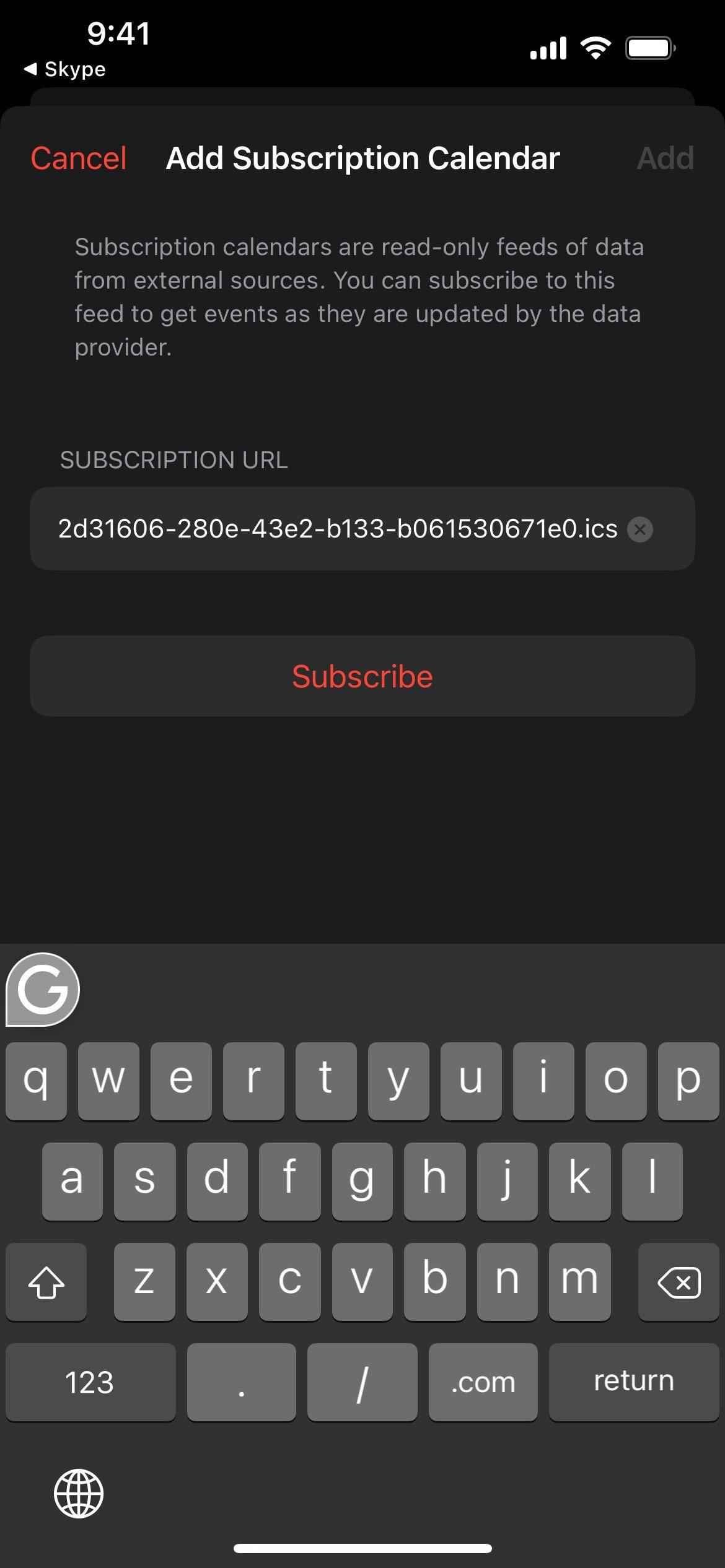
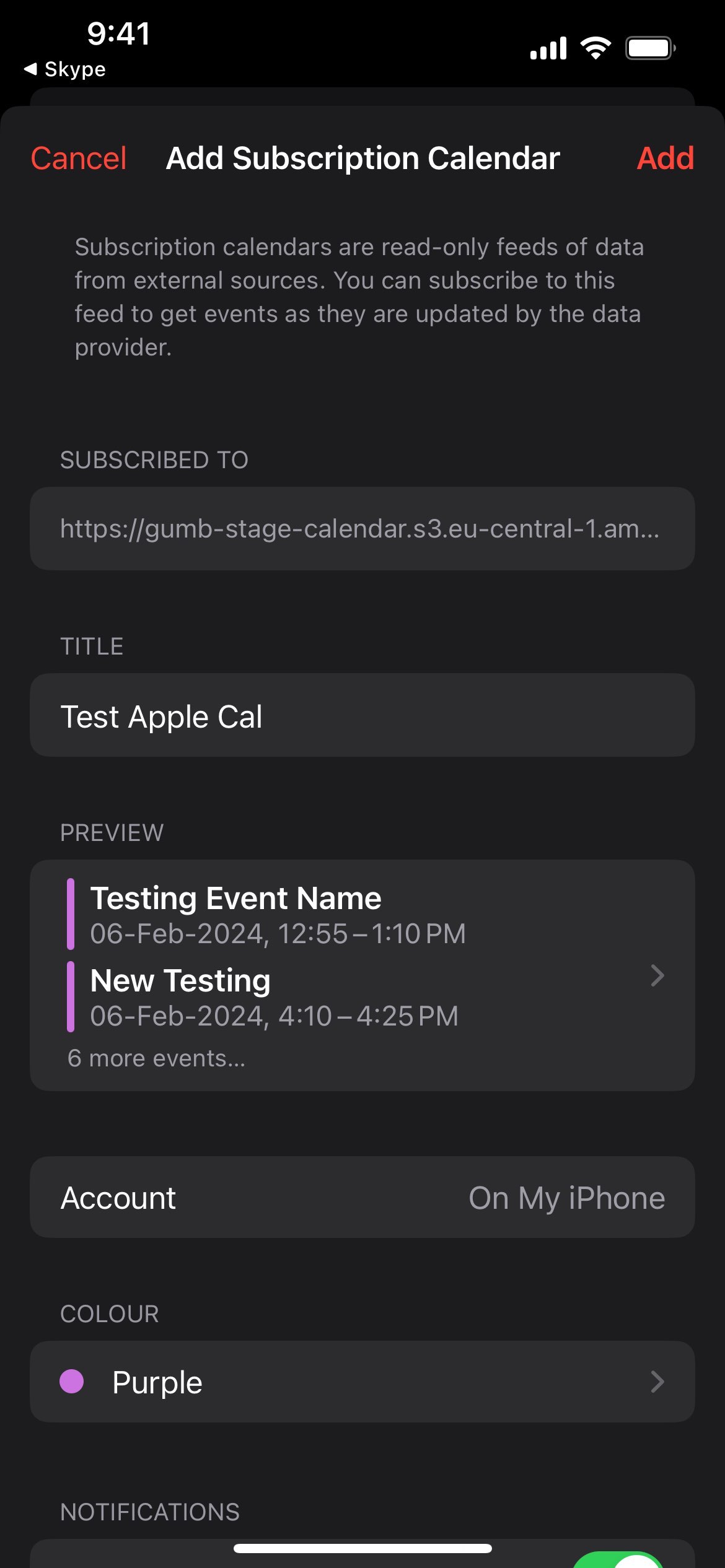
- Your Apple Calendar opens. Tap "Find" (iOS 26 or later) or "Subscribe" (iOS 18 or earlier).
- Name the calendar, choose a color, and next to "Account" select "iCloud". Tap "Done" (iOS 26) or "Add" (iOS 18). Done ✅. Your calendar will sync automatically.
What Happens Automatically?
- From Gumb to Apple: If you add/change something in Gumb, your Apple Calendar updates automatically within minutes.
- From Apple to Gumb: Changes in the Apple Calendar don't affect Gumb. Edit or delete as you wish - Gumb remains unchanged.
Direct Links in Your Calendar
Each Gumb event now has a clickable link, allowing you to manage your attendance directly in the app.
Good to Know
- Immediate Synchronization: Linking Gumb with your calendar syncs all events from the last week onwards, with no end date. You won't miss a thing.
- Admin Changes: If an admin makes changes in Gumb, you'll see it after reloading the Apple Calendar page. It may take a moment.
- Removed by Admin? If an admin removes someone from the community, synchronization for that person ends. All Gumb events disappear from their Apple Calendar.
Can't See Your Calendar Subscription?
- If your calendar isn't appearing on all devices, ensure you're signed in to iCloud with the same Apple Account.
- Subscribed calendars won't update on iCloud.com or Outlook; check directly on your Apple devices.
- After restoring calendars from iCloud.com, re-subscribe to ensure they're up-to-date.
Unsubscribing from a Calendar
Clicking "Disconnect" in Gumb will remove all appointments from your Apple Calendar, but the calendar itself might still be visible. You can remove it as follows:
- On macOS: Open Calendar, right-click the calendar you want to remove, and select Unsubscribe.
- On iOS: Open Calendar, tap Calendars, select the Gumb calendar's info button, and choose Delete Calendar.
Questions?
Reach out at support@gumb.app, use our contact form or visit our help centre at gumb.app/en/support.