
For Members
Edit Your Profile ✏️
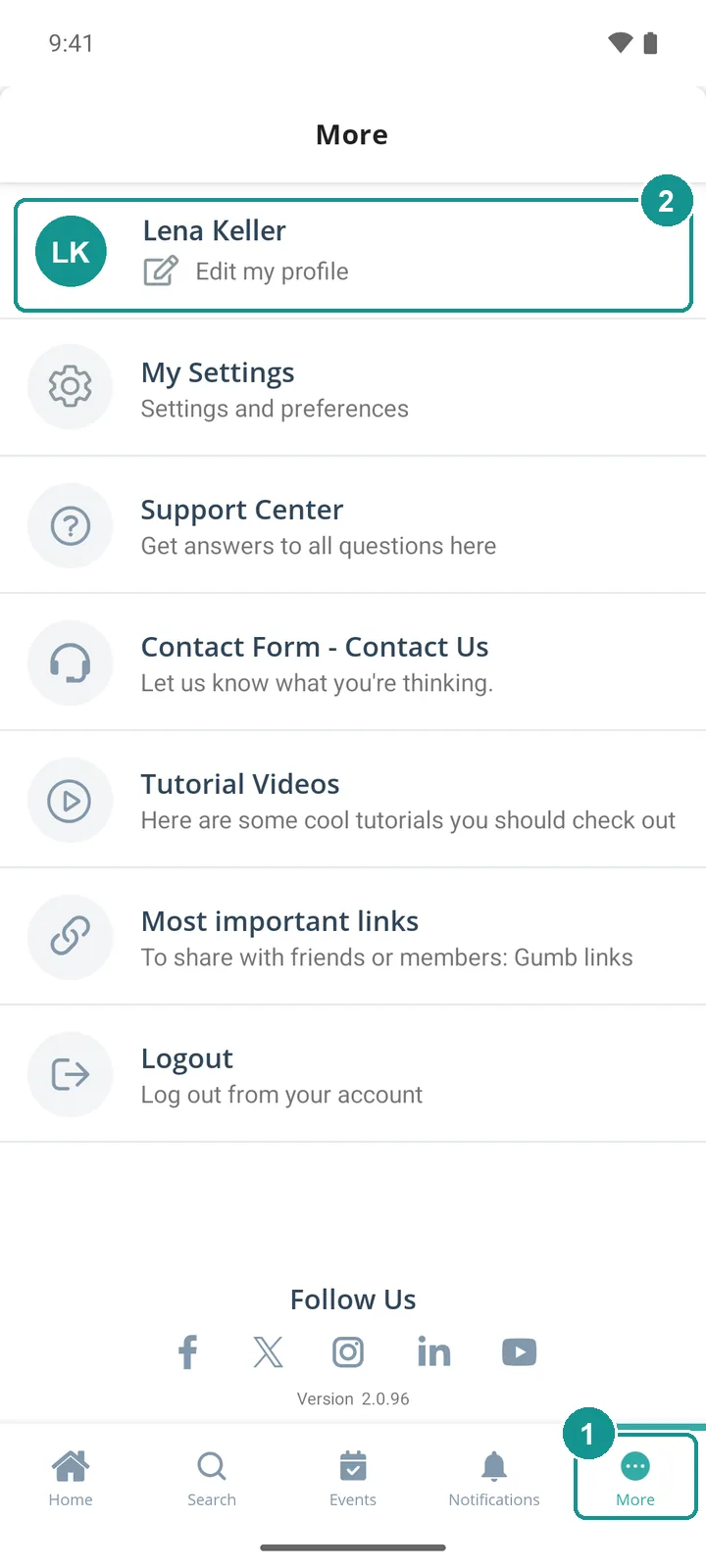
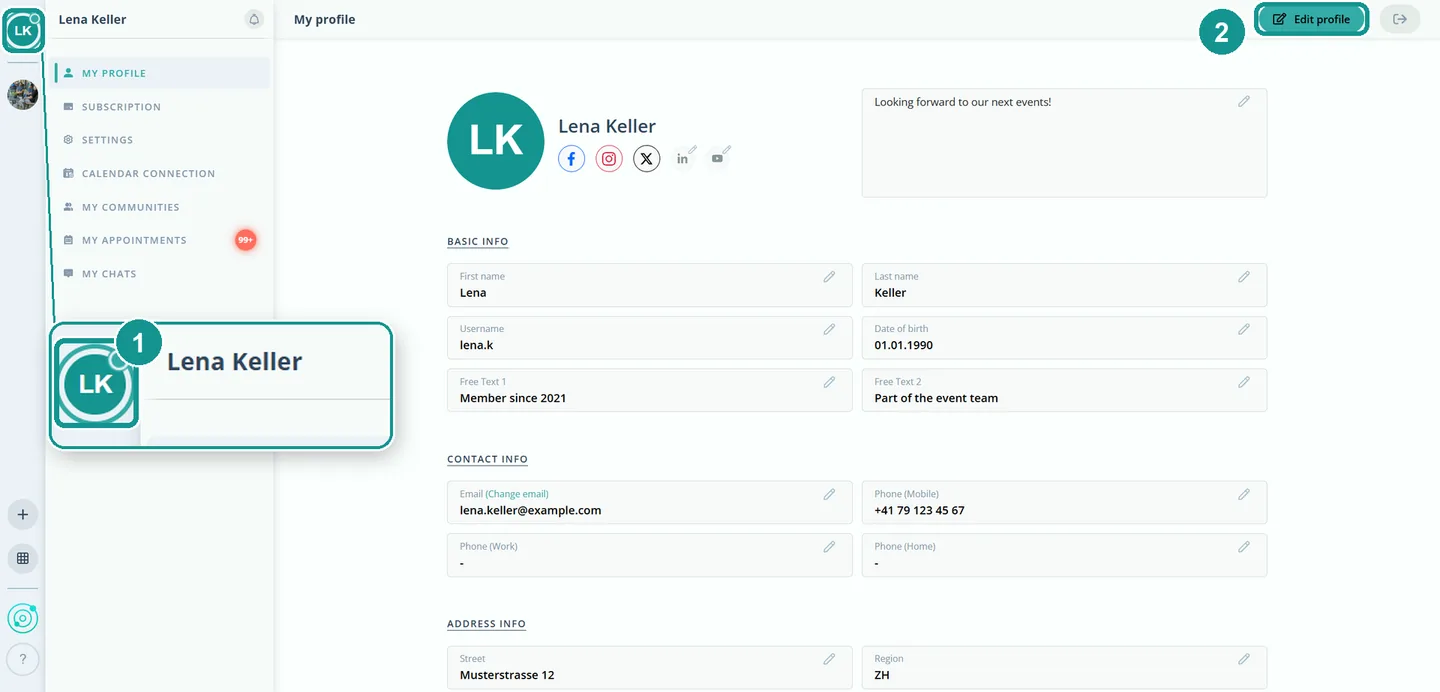
You edit your profile yourself: profile picture, name, phone number and more. In the app, tap More at the bottom and then Edit my profile. On a computer, click your profile picture at the top left and then Edit profile. Your details apply in all your communities.
Where do I find my profile?
In the app, tap More (1) at the bottom right and then Edit my profile (2) at the top. On a computer, click your profile picture at the top left (1). My profile opens with all your details, and Edit profile (2) is at the top right.
How do I change my profile picture?
- Open Edit profile.
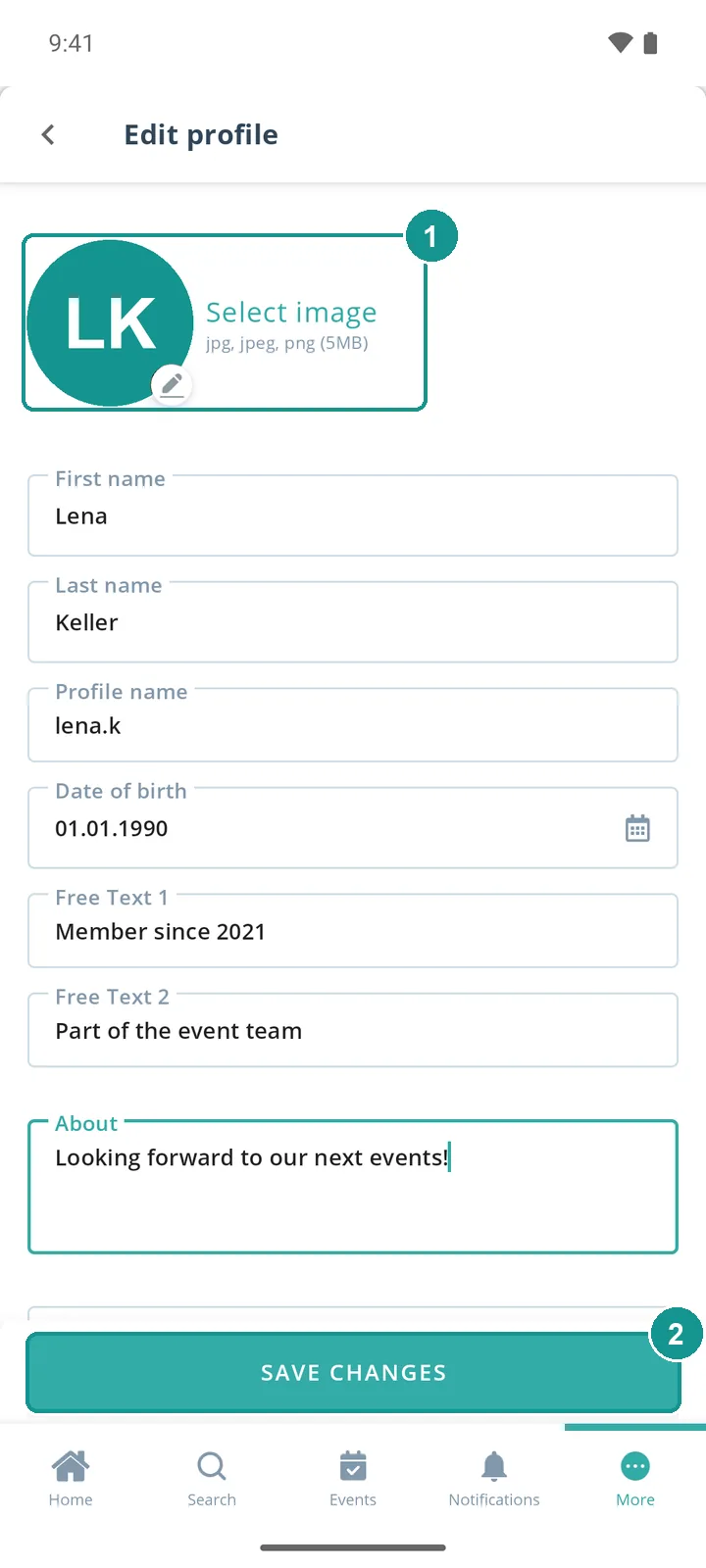
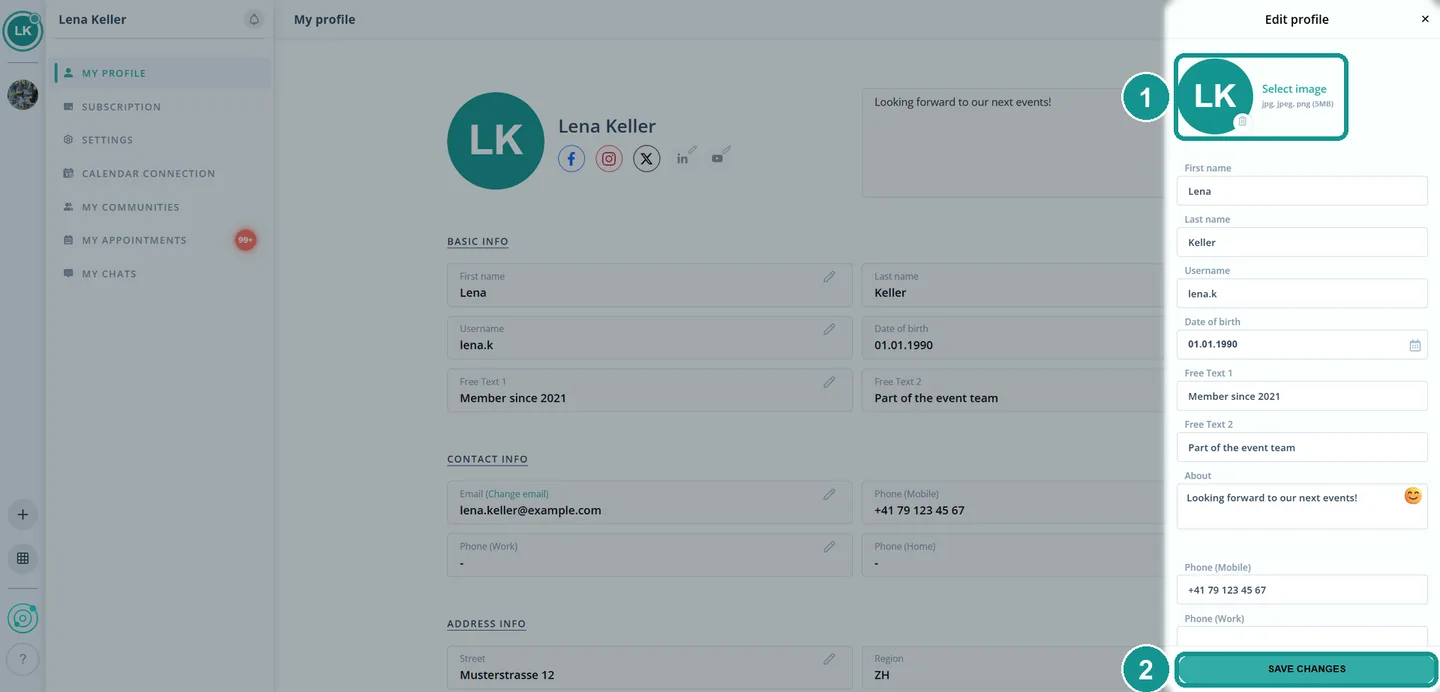
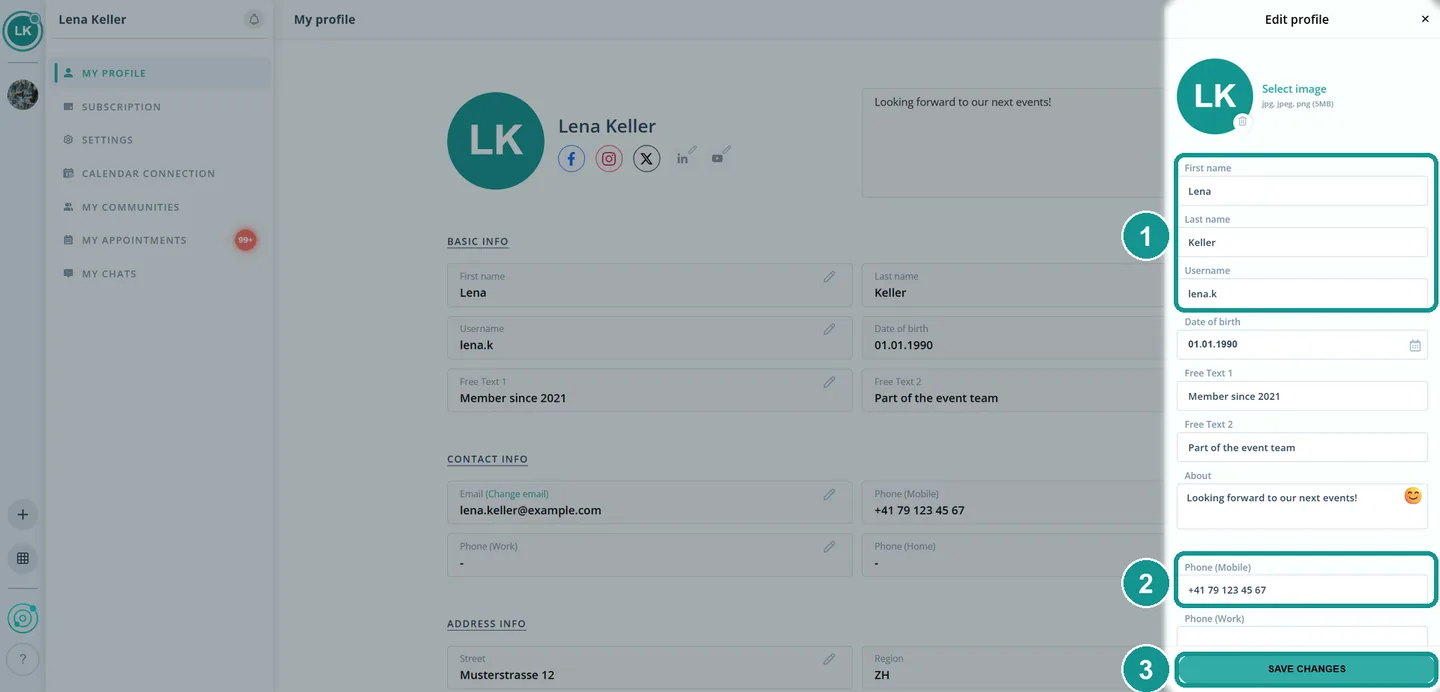
- Choose Select image (1). In the app you can take a photo or pick one from your gallery. JPG and PNG up to 5 MB work.
- Tap or click Save changes (2).
How do I change my name, phone number and other details?
Everything is in the same Edit profile window:
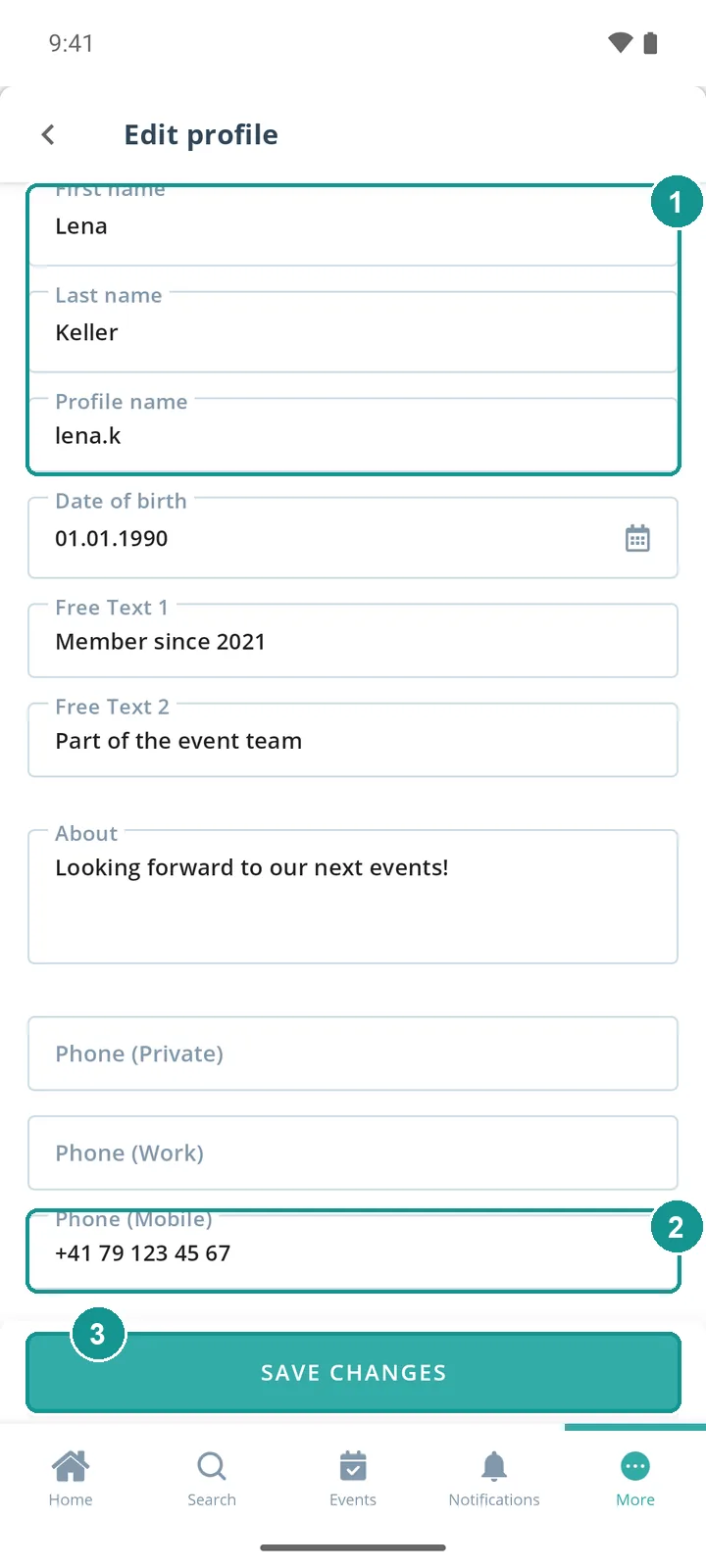
- Change your first name, last name or username (1).
- Enter your number under Phone (Mobile) (2). Work and private numbers have their own fields.
- Tap or click Save changes (3).
Which details can I fill in?
- Name first name, last name and username.
- Personal date of birth, free text 1 and 2, and About.
- Contact phone (mobile, work, private) and address.
- Social media Facebook, X, LinkedIn, Instagram and YouTube.
Where do I change my email, password and language?
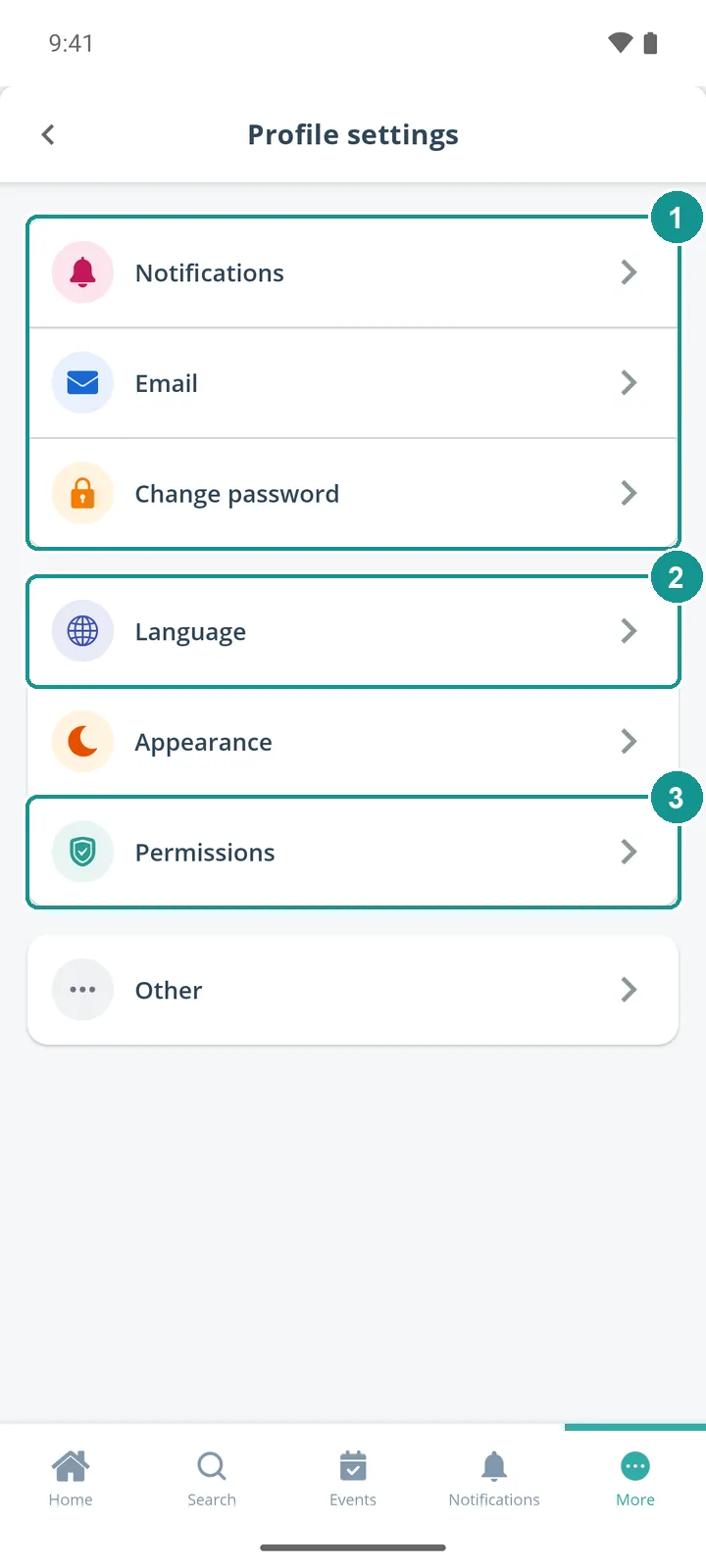
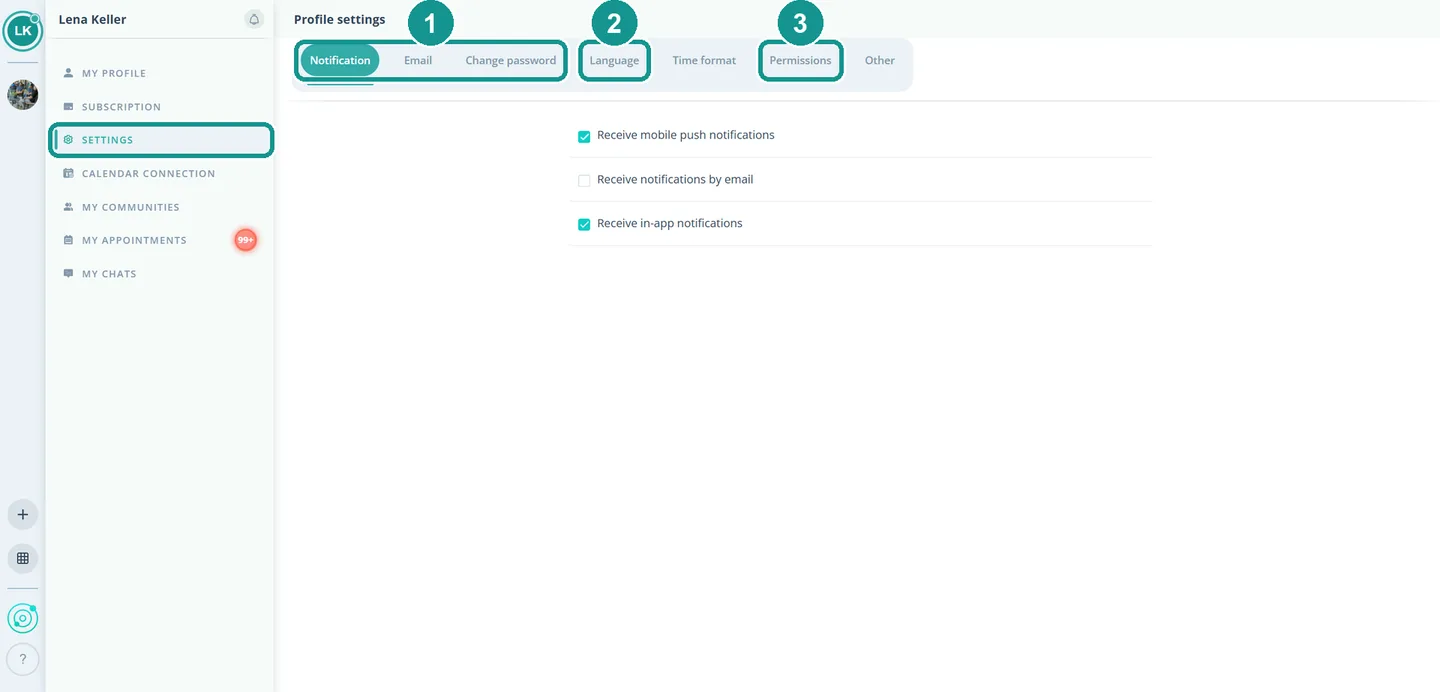
In your profile settings. In the app, tap More and then My Settings. On a computer, click Settings on the left. There you find notifications, email and password (1), the language (2) and permissions (3).
Can an admin edit my profile?
Only if you allow it. In the settings, open Permissions (3) and select the communities under Admins are allowed to edit my profile. The details are in Edit Member Profiles 👤🛠️.