
Account Help
Change Password
You can change your Gumb password yourself: in your profile, go to "Settings", click "Change Password", enter the new password twice and save.
How to change your password:
1. Log in to your account: Log in
2. Go to your profile in the top left corner:
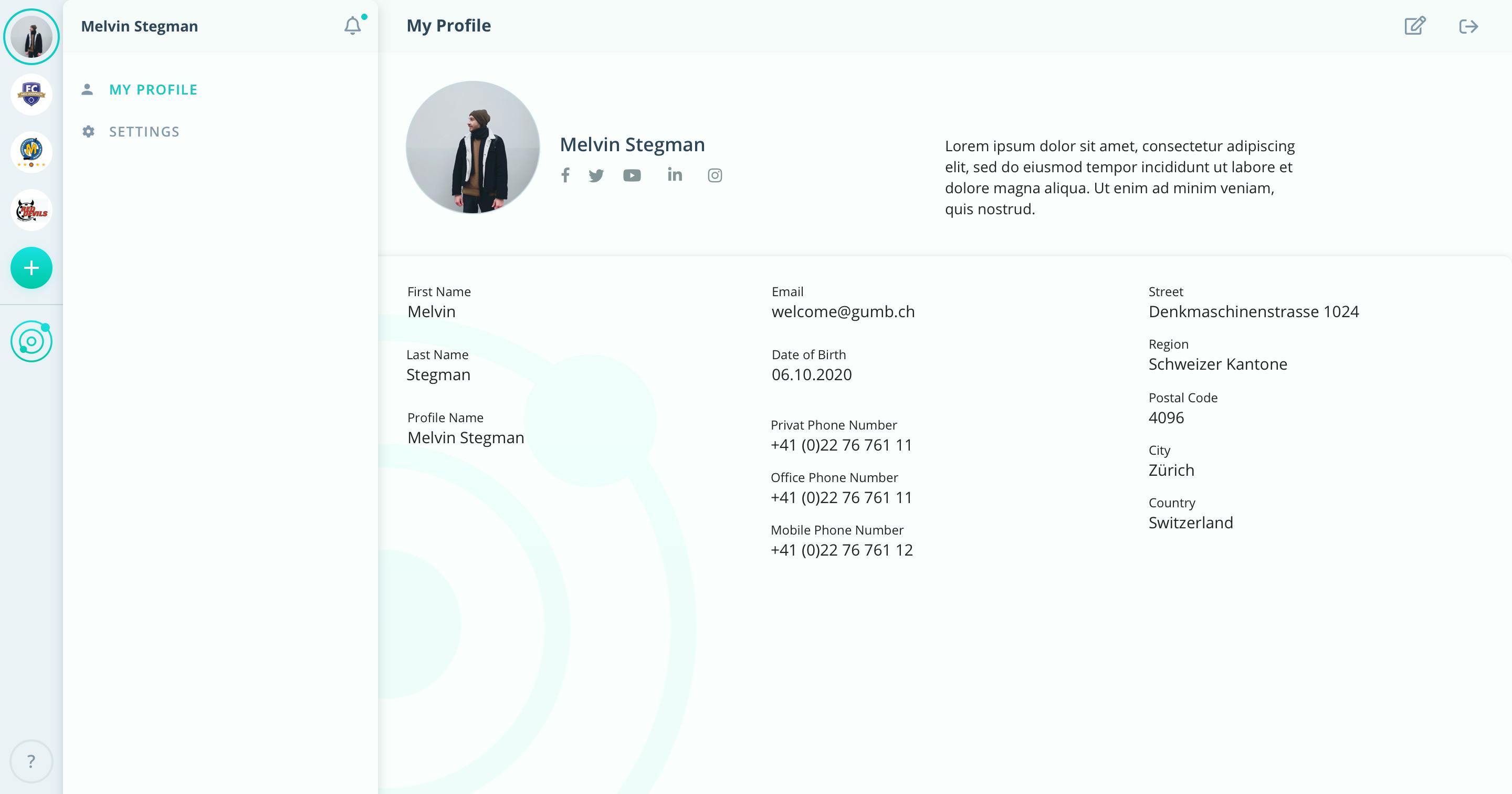
3. In the menu bar click on 'Settings'
4. In your profile settings click on 'Change Password'
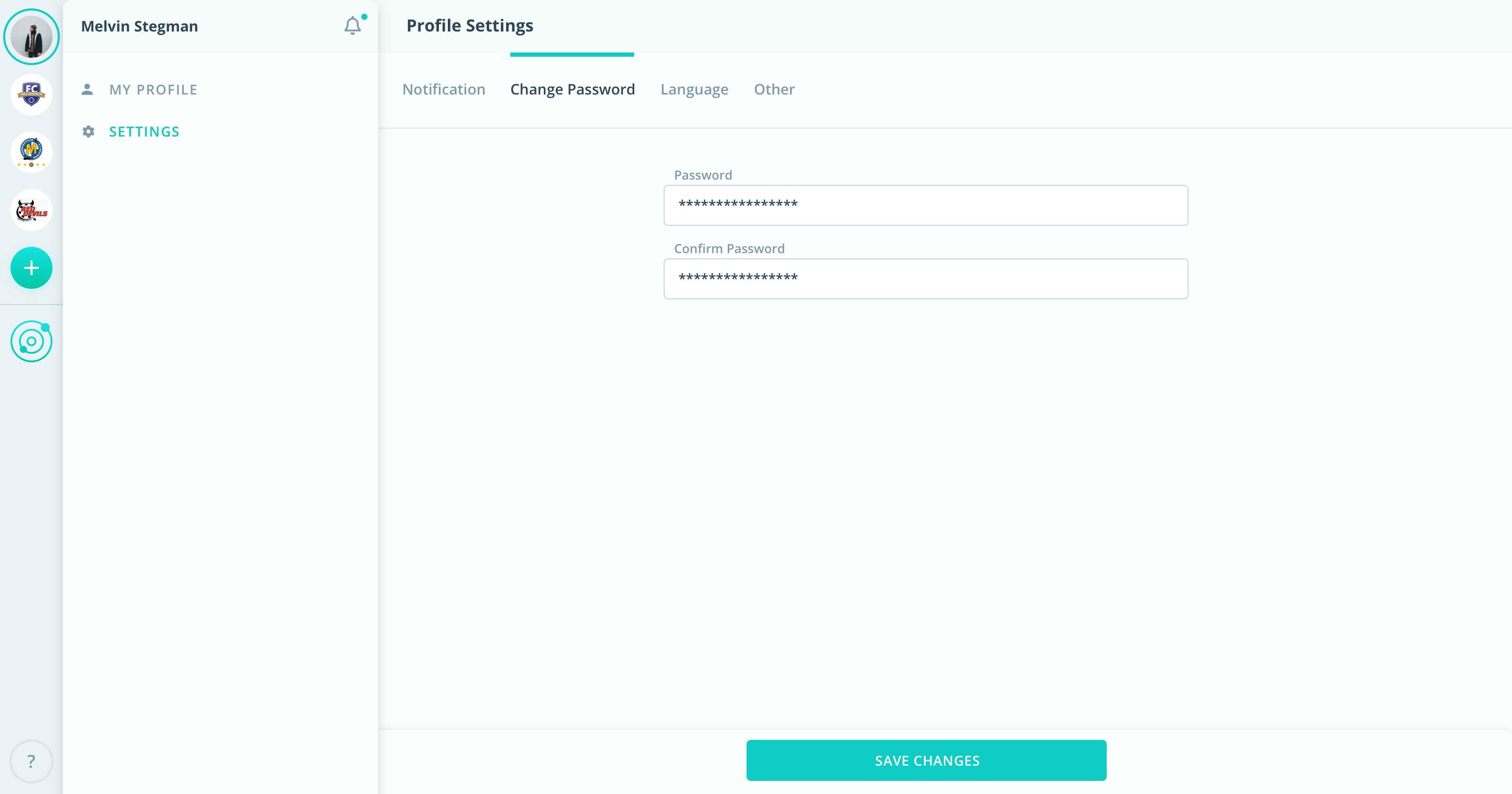
5. Insert your new password.
6. Also, insert your new password in 'confirm password' to be sure you didn't make a spelling mistake in the first one.
7. Click on 'Save Changes'.
You can now use your new password for your future logins.
If you can't log in to your Gumb Account to change your password this way, use forgot password to reset your password and create a new one.
If you have further questions or need help, please contact us via the contact form.