
Troubleshooting
Profile editing not possible❓
Can't change data for some members even though it works for others? This article shows you:
- What the member must toggle so you- as an Admin-get editing rights.
- How you then update the profile in seconds.
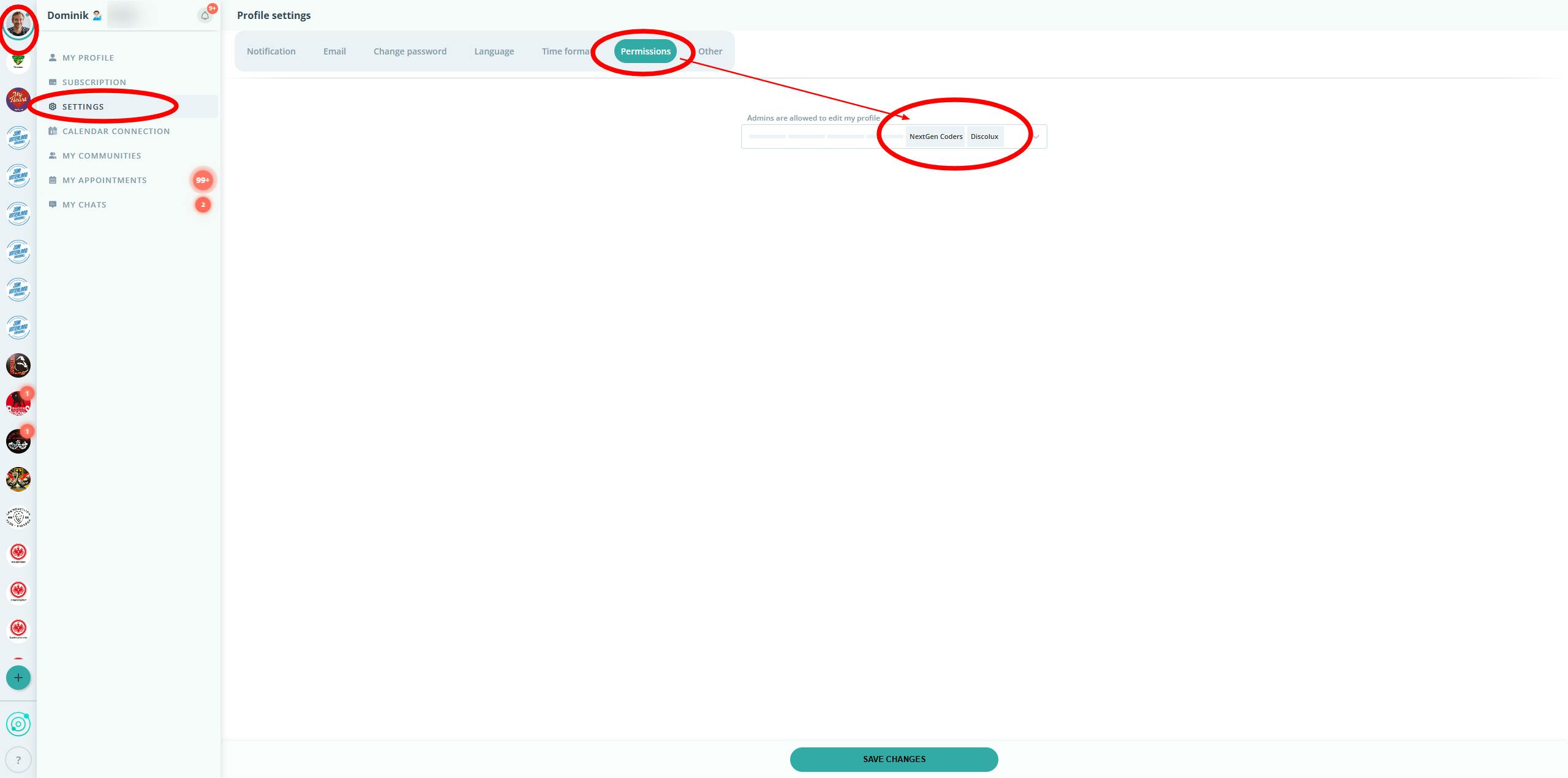
1. As a Member: Enable Admin Editing
- Open your profile (click your avatar, top-left).
- Go to Settings.
- Turn on Allow admins to edit my profile.
- Select your community/team from the dropdown.
- Click Save.
- Reload the page.
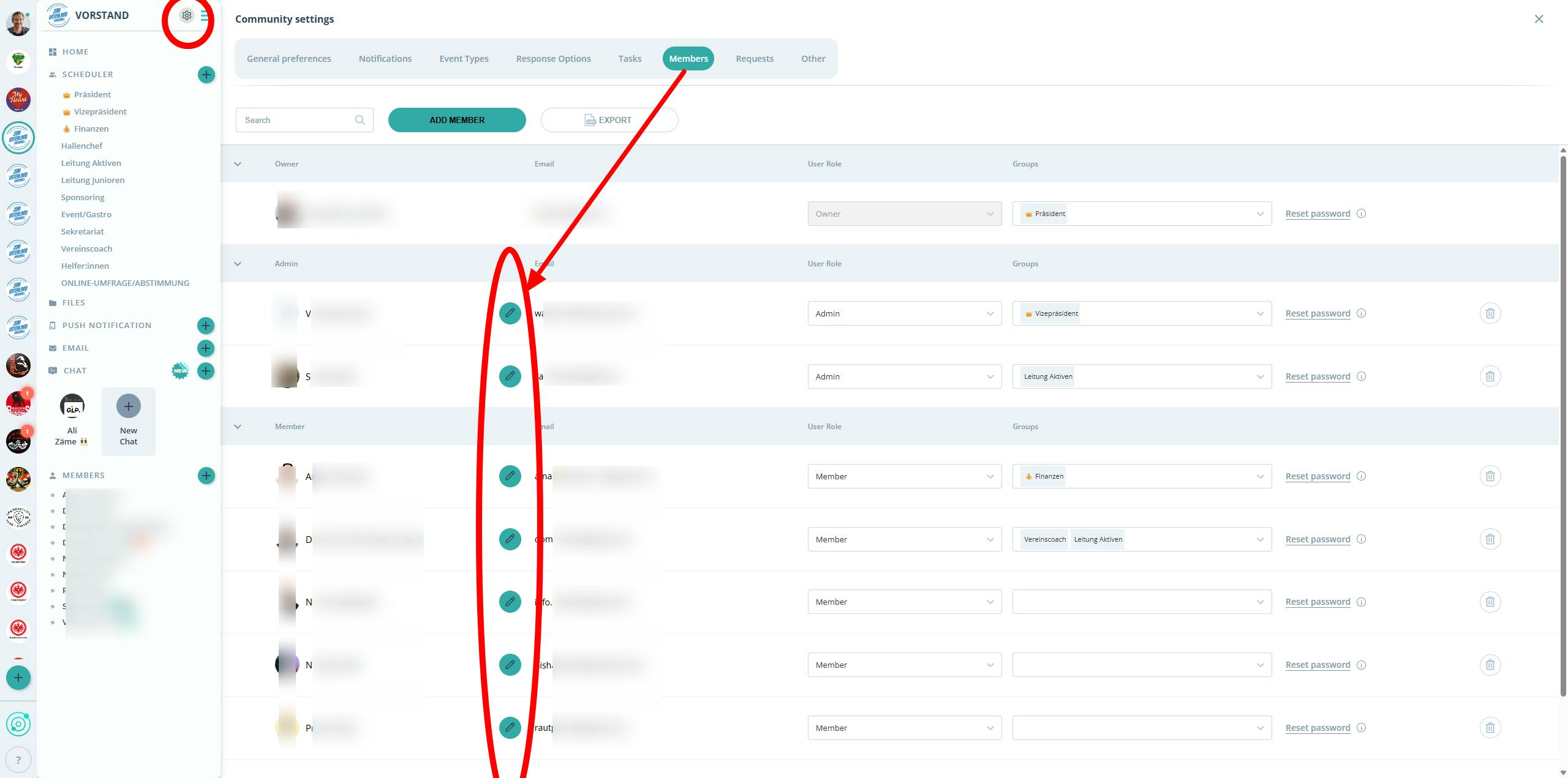
2. As an Admin: Edit the Profile
- Navigate to Community " Settings.
- Open the Members tab.
- Find the member and click the 🖊️ icon.
- Choose Edit Profile.
- Make your changes and click Save.
🎯 Tip: If you don't see updates right away, reload the page.
Need help or have questions? Our support team is here for you. Contact form