
For Admins
Create and Assign Tasks 📋
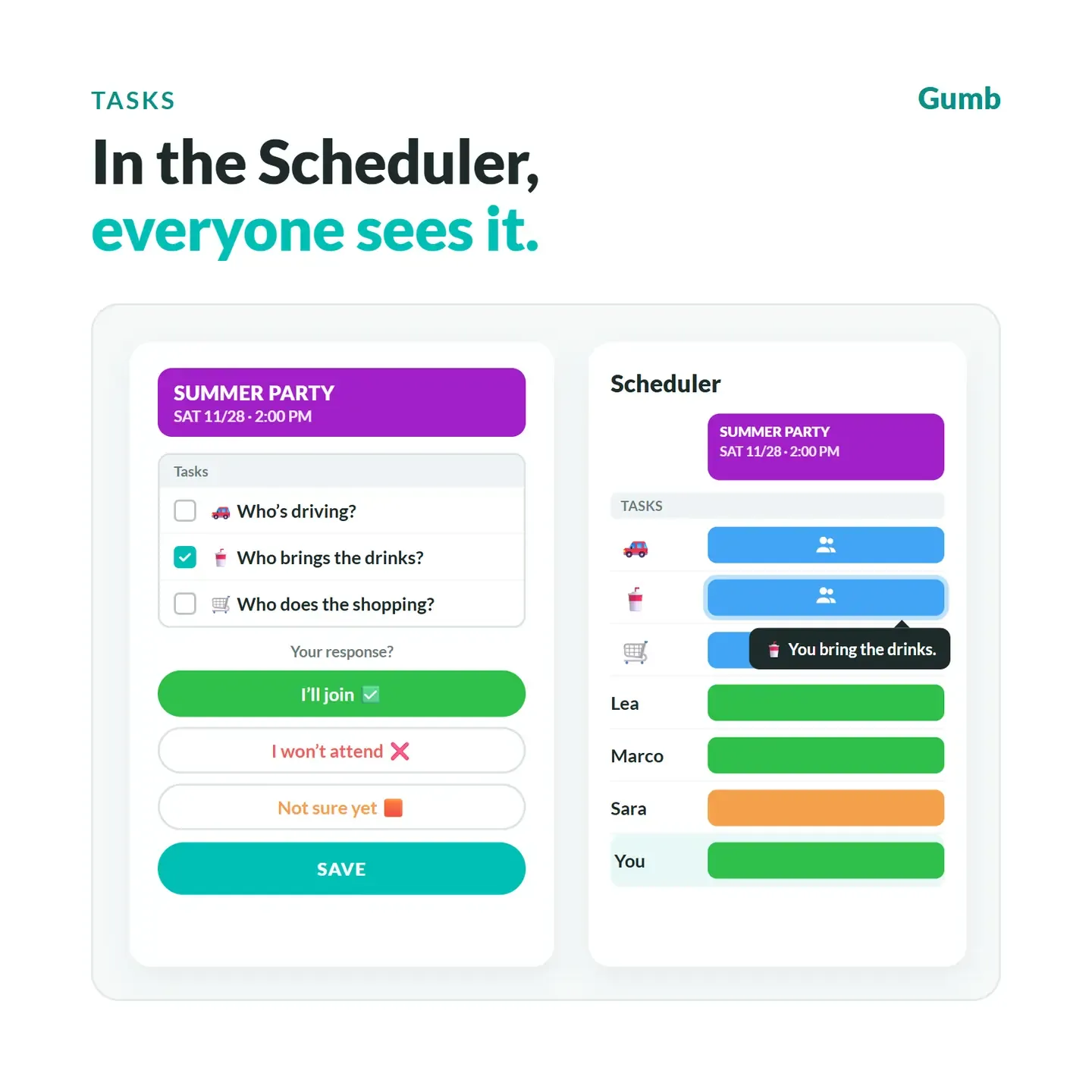
Tasks settle who takes care of what at an event, e.g. who's driving or who brings the drinks. You create them once in the settings and turn them on per event. Members sign up with their response.
What do tasks do?
- Clear ownership Everyone sees who does what.
- Self sign-up Members take a task with their response.
- All in the Scheduler Open tasks stand out right away.
- Create once Turn them on for every event that needs them.
Task, event type or group?
- Event type the kind of event, e.g. screening or practice. It sets the color and defaults. Every event has exactly one type.
- Task a role within an event, e.g. cash desk or bar. One event can have several tasks.
- Group a fixed team with its own group scheduler. The group's events go to its members.
Example: A cinema creates the event type "Screening". Every screening needs people for the cash desk, projection and bar. Those are tasks. The cinema team that meets every month becomes a group.
Anyone in several groups shows up under each group in the Scheduler. In the Total row and in the export, their response still counts only once. More: Event Types 🎫 and Groups & Communities 👥
How do I create a task?
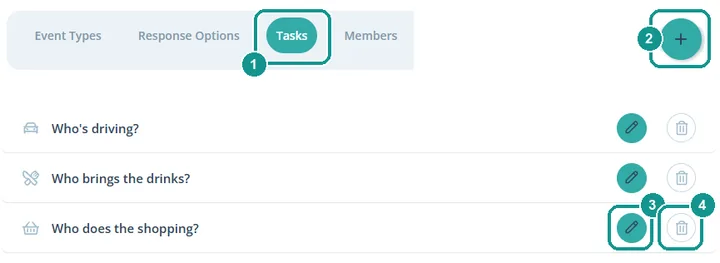
- Click the gear ⚙️ next to your community's name and open the Tasks tab (1).
- Click ➕ at the top right (2). A panel opens on the right.
- Enter a Task name (1) and pick an Icon (2).
- Click Save changes (3).
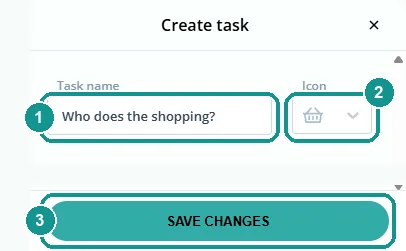
Phrase the task as a question, e.g. "Who does the shopping?". In the Scheduler, it then reads like an open item.
How do I turn on tasks for an event?
New tasks aren't active for any event. Here's how to turn them on:
- In the Scheduler, click the three dots on the event (1) and pick Tasks (2).
- In the Tasks tab (1), check what this event needs (2).
- Click Update event (3).
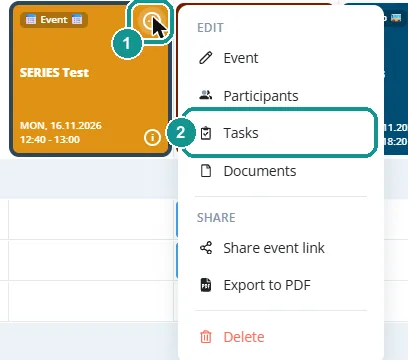
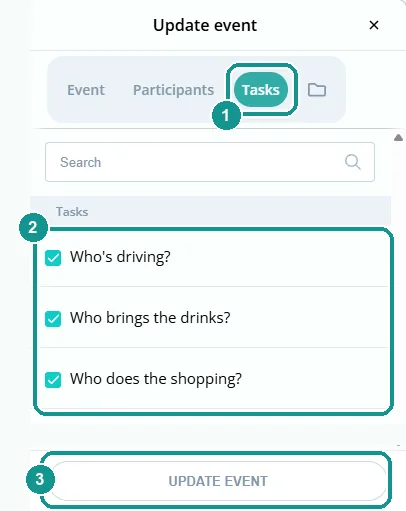
Active tasks show up in the Scheduler as blue fields below the event.
How does someone take a task?
With their response. The member checks the task (1), picks a response (2) and clicks Save (3). In the Scheduler, the blue field then shows a person icon. Click it to see who signed up.
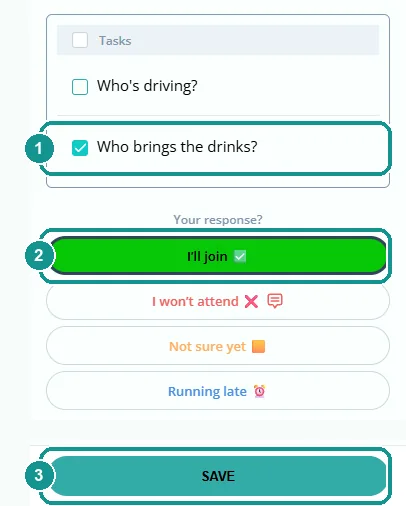
Important: Check the task. Text in the comment field, e.g. "Projection", doesn't sign anyone up for the task.
Until the registration deadline, the member can uncheck a task and save, even if an admin signed them up. After that, only admins and group leaders can change the response.
How do I assign a task to someone?
As an admin, you sign members up for a task directly, even if they haven't responded yet.
- Turn the task on for the event. In the Scheduler, it shows up as a blue field below the event (1).
- Click the person's field at the event (2).
- Under Tasks, check the task (3) and pick a response for the person (4).
- Click Save (5).
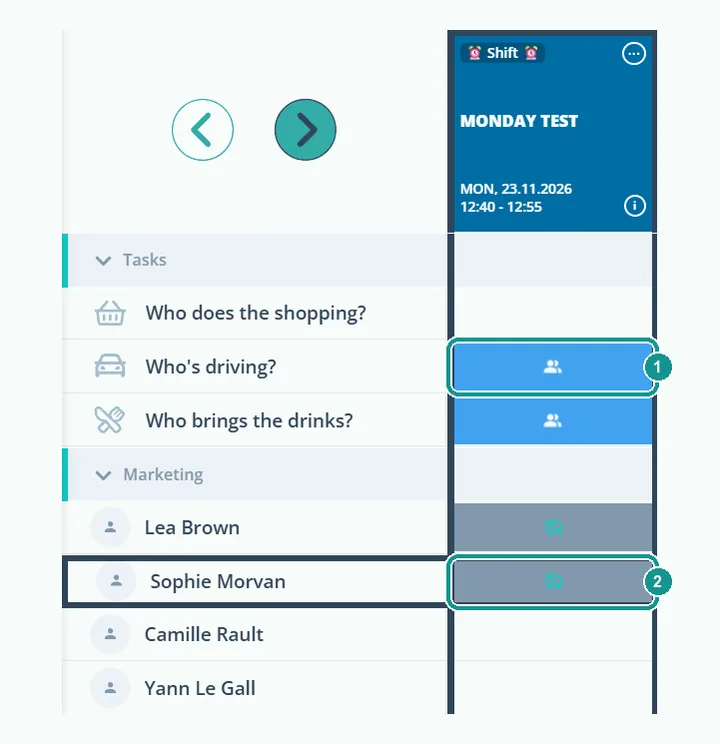
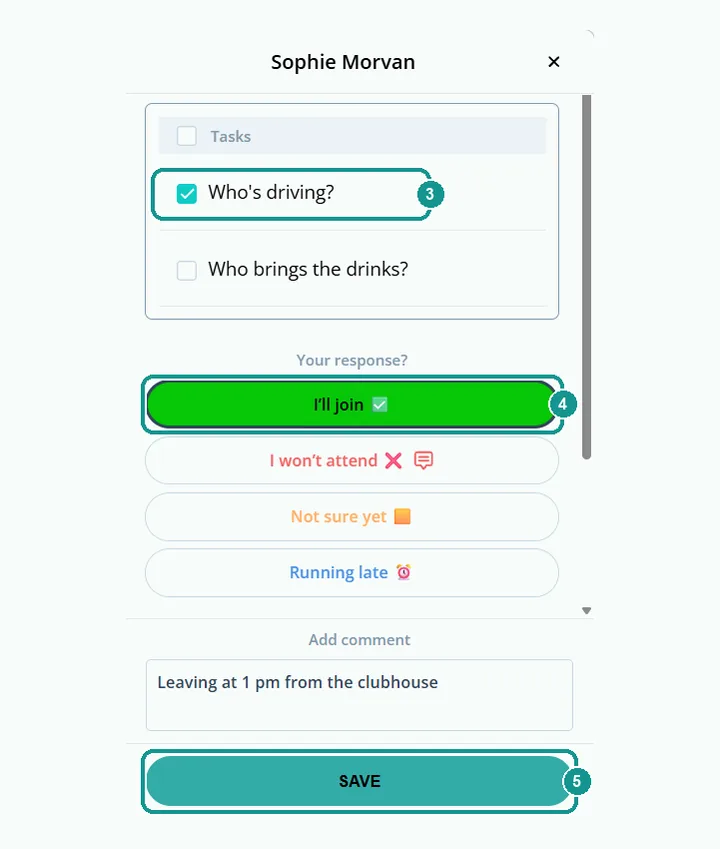
Gumb always saves a task together with a response. Without a response, Save stays gray.
Can several people take the same task?
Yes. A task has no limit, as many people can sign up as want to. If you need a certain number, put it in the name, e.g. "Who runs the cash desk? (2 people)". Anyone taking several tasks just checks them all.
Can I add a note for the task?
Yes. The same window has an Add comment field at the bottom, e.g. "Setup from 2 pm, south entrance". The person sees the comment under My Appointments and in the app. There is one comment field per person and event, even if they have several tasks.
How do I change or delete a task?
Click the pencil (3) in the list to change the name or icon. The trash can (4) deletes the task.
What else are tasks good for?
Anything that comes up at many events, even if it isn't a classic task. A task like "Meeting point field A" shows everyone right away what applies.