
For Admins
Create a Poll or Vote 📊
Want to ask everyone a question? A poll does it right in Gumb, no extra tool needed: a yes/no question, a vote between several options or finding a date that works for everyone. Every poll is an event of the event type SURVEY 📊. Members answer like for any event, and you see the result live in the Scheduler.
What kinds of polls can you run?
- Yes/no question A single event, e.g. "Should we have a summer BBQ?"
- Several options One event per option, e.g. what food you order on Friday.
- Finding a date One event per possible day. Everyone says yes to the days they can make.
Gumb creates the SURVEY 📊 event type automatically in every new community.
How do I create a yes/no vote?
A single event is enough.
- In the Scheduler, click the calendar icon at the bottom right. The Create event panel opens on the right.
- Type the question into the Event name (1), e.g. "Should we have a summer BBQ?"
- Choose SURVEY 📊 as the Event type (2).
- In the Description, write what the responses mean (3), e.g. "I'll join = Yes" and "I won't attend = No".
- Leave Set default response for all empty and click Create event.
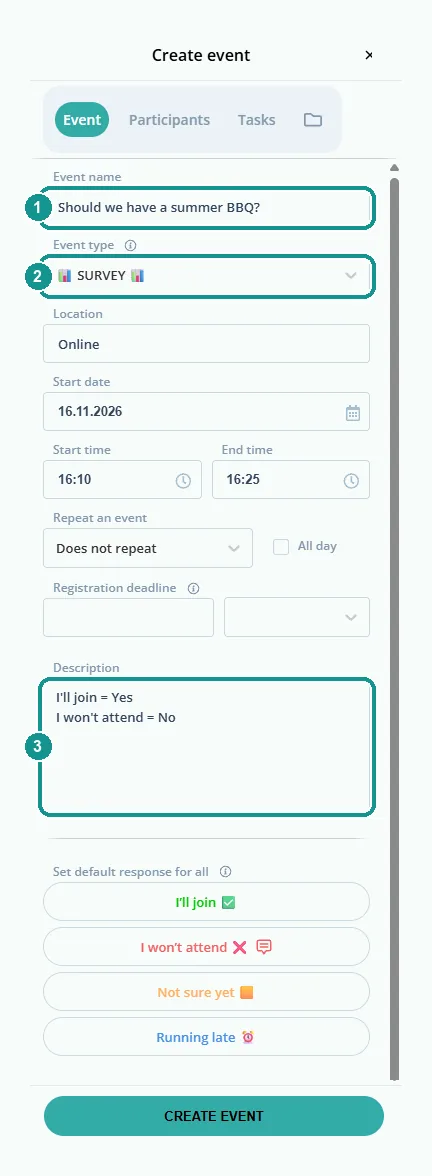
Members answer with I'll join for yes or I won't attend for no.
How do you vote between several options?
Each option gets its own tile in the Scheduler, e.g. pizza, pasta, BBQ night and salad bar. The quickest way is to create the tiles as a series:
- Create an event with the first option as the Event name, e.g. "Pizza 🍕", and the Event type SURVEY 📊.
- Under Repeat an event, choose Daily and set the End date so the series has as many days as there are options. For four options, that is four days.
- On the second tile, click ⋯ > Event, type the next option into the Event name, e.g. "Pasta 🍝", and click Update event.
- Gumb asks what the change applies to. Choose This event (1) and click OK (2). Rename every tile this way.
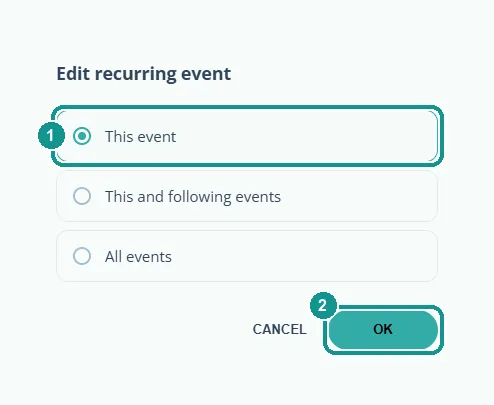
The tiles now carry the names of the options (1). Members say yes to every option that suits them. The date of the tiles doesn't matter here.
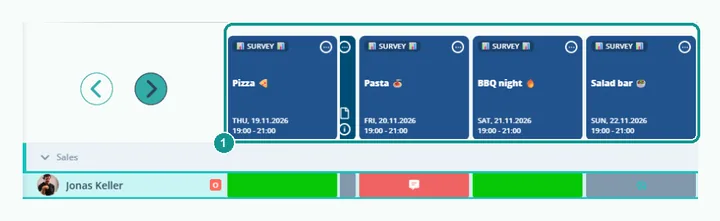
Careful: With This and following events or All events, Gumb applies the change to the whole series, including the name. To rename a tile, always choose This event.
How do I find a date that works for everyone?
To find a date, you create one event per possible day. A series does it in one step:
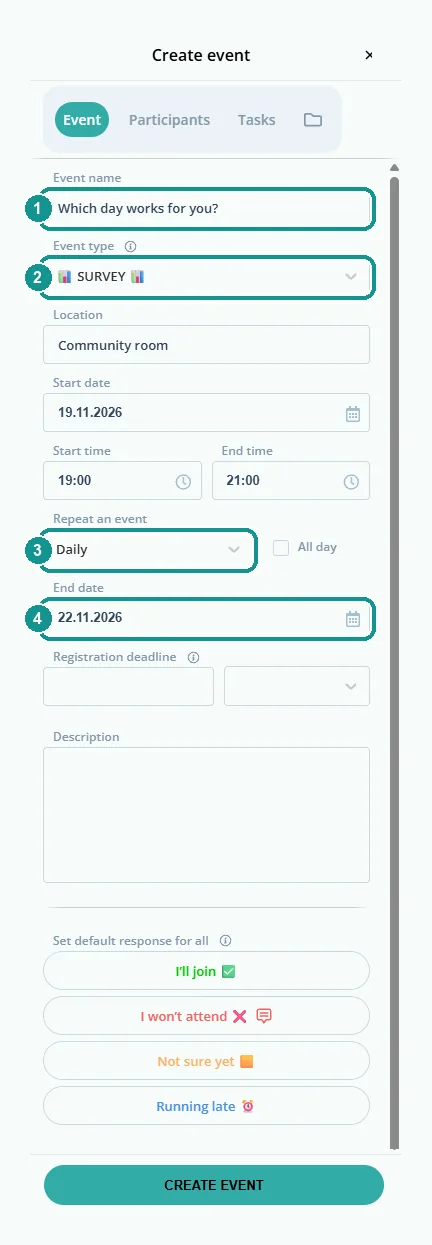
- Type the question into the Event name (1), e.g. "Which day works for you?", and choose the Event type SURVEY 📊 (2).
- Set the Start date to the first possible day and enter the time.
- Under Repeat an event, choose Daily (3) and set the End date to the last possible day (4).
- Click Create event.
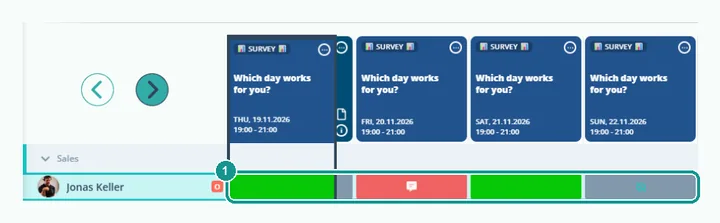
The Scheduler now shows a tile for each day. Members say yes to every day they can make. Because the events form a series, Gumb asks what the answer applies to. Members choose This event.
How do I see the result?
In the Scheduler, each member's row shows how they answered (1): green for yes, red for no, gray for not answered yet.
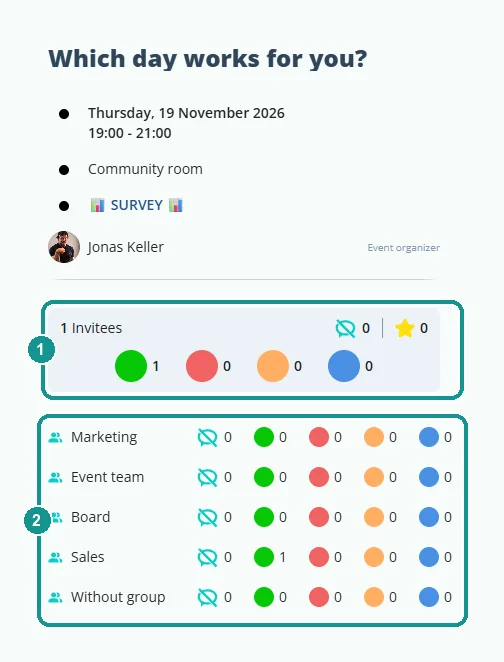
Click a tile. On the right, you see how many people said yes (1) and how the answers split across groups (2).
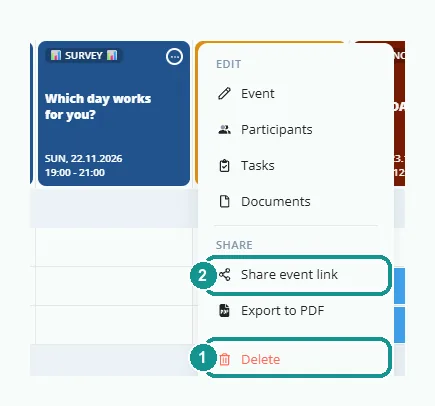
Once the result is clear, delete the tiles you no longer need with ⋯ > Delete (1) and choose This event. For the event you keep, set the right event type with ⋯ > Event, e.g. Meeting.
How do I let everyone know about the poll?
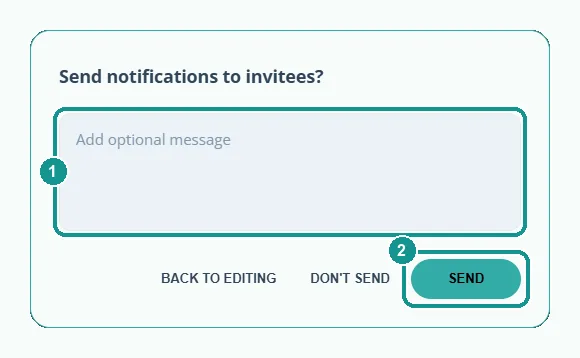
After you create it, Gumb asks whether to notify the invitees. Write a short message (1), e.g. "Please vote by Wednesday", and click Send (2).
Later, send a reminder as a push message or an email. With ⋯ > Share event link, you can also share the link in a chat or messenger. More: Push Messages 📢, Email Feature 📧
Can I change the event type?
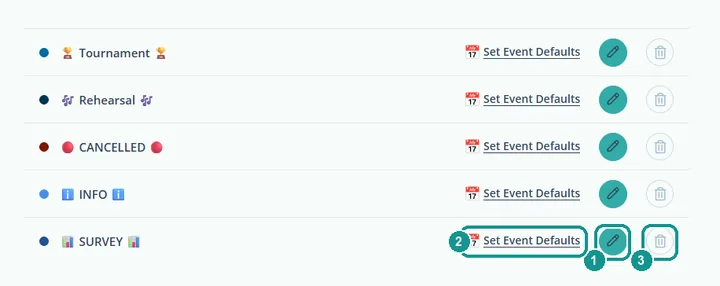
Yes, in the community settings under Event types. The pencil (1) changes the name and color. Under Set Event Defaults (2), you save a template for new polls, e.g. the description with the meaning of the responses. If you don't need polls, delete the type with the trash can (3). More: Create Event Types 🎫
Can everyone see who voted for what?
Yes. As with any event, every member sees in the Scheduler who answered what. A poll is therefore not meant for a secret ballot.
How do I close a poll?
Set a Registration deadline when you create it. After that, members can no longer answer. To remove the poll entirely, delete its events with ⋯ > Delete.