
For Admins
Admin Guide: Set Up Gumb 🚩
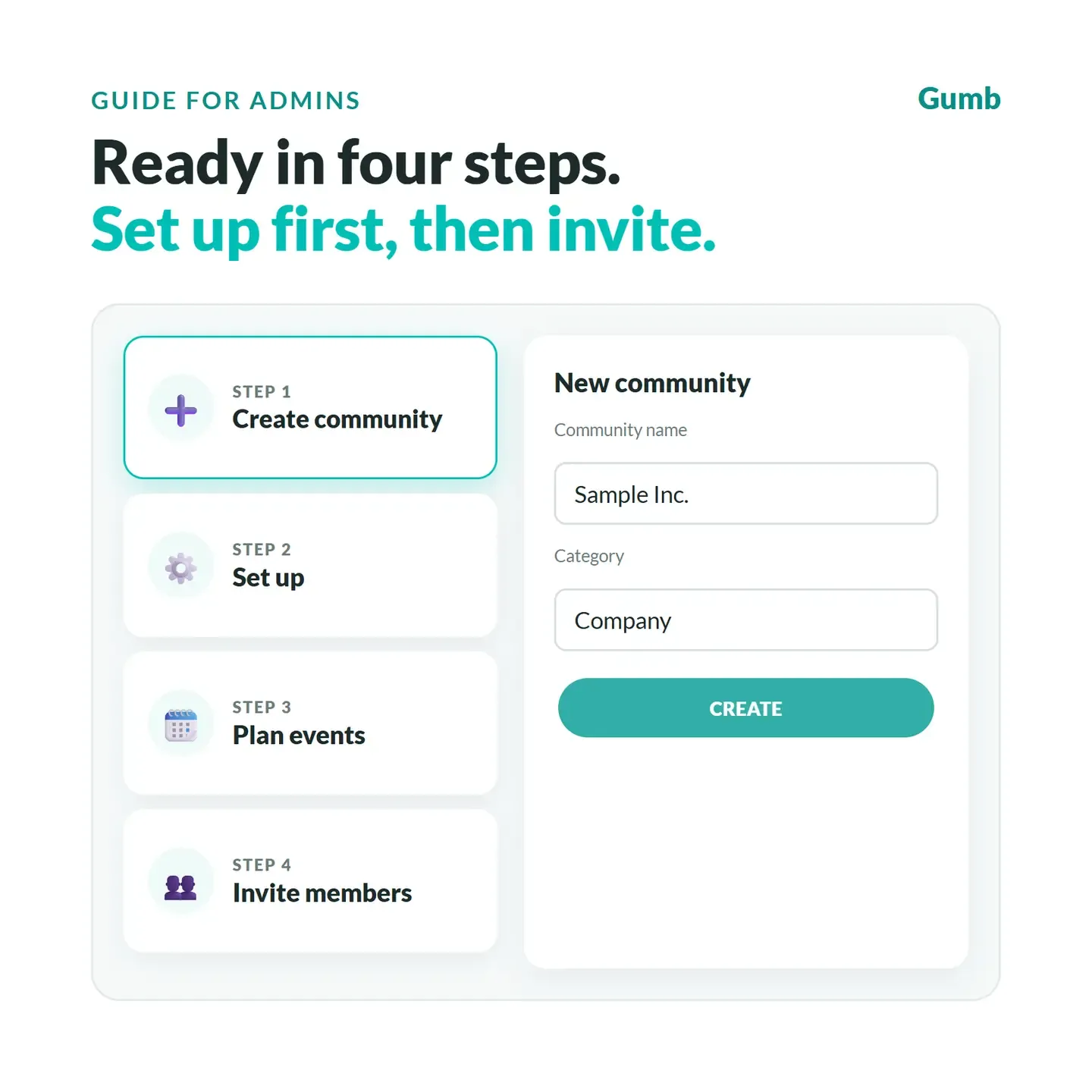
As an admin, you set up your community, schedule events and manage members. You open the settings in the web app with the gear ⚙️ next to your community's name. Set everything up first, then invite your members.
Where do I work as an admin?
You set up and plan on your computer, in the browser. Your members reply on the go in the app, and Gumb is free for them.
Plan on your computer
In the browser on your PC or laptop. No app needed.
Sign in on your computer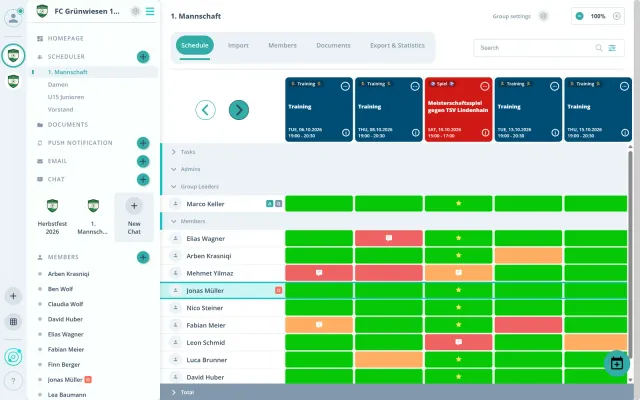
Reply on the go
Say yes or no, get reminders: all in the app on your phone.


How do I get started as an admin?
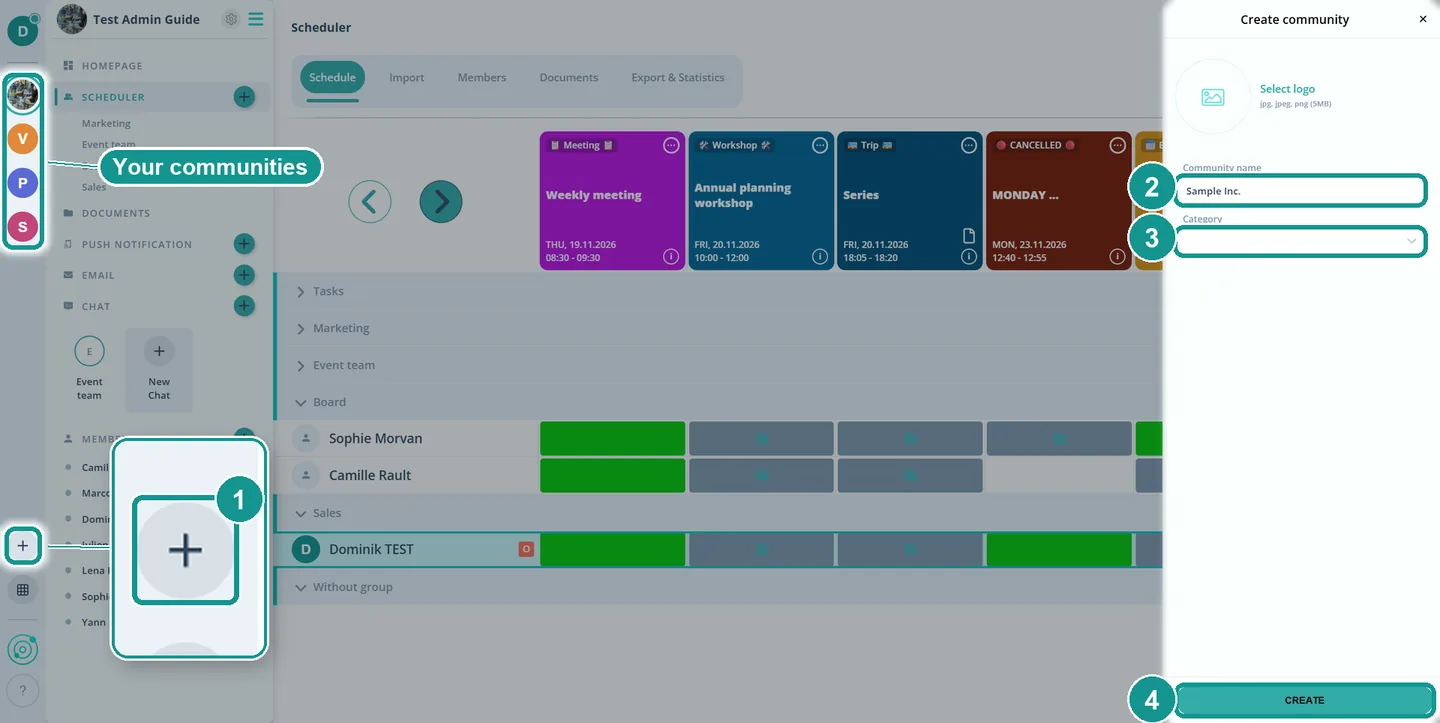
- Create a community: Your communities are listed in the sidebar on the left, and one click opens one. For a new one, click ➕ (1) at the bottom of the sidebar. Enter a name (2) and a category (3), then click Create (4). You need a free trial or a subscription for this. If you don't have one yet, you start the free trial first.
- Set it up: Add your homepage, event types, response options, tasks and notifications. It takes about 10 minutes.
- Plan events: Create your groups and your first event series, e.g. the weekly team meeting or training.
- Invite members: Share the community link or add people by their email address.
New admin in an existing community?
If the community is already set up, first look at the Scheduler, the groups and, under the gear ⚙️, the event types and notifications. These settings apply to everyone. Agree on changes with the owner and the other admins. You can plan events, invite members and send push messages right away.
Why set up first?
Members who join an empty community see no events on their first login and don't know what to do. When event types, groups and the first events are already there, they can respond right away. You can schedule events without members and add participants later.
One community or several?
A company with several departments, an organization with project teams or a club with several teams: if everyone follows the same processes, one community with groups is enough. If each lead wants their own settings, use several communities.
- One community with groups: one shared scheduler, one member list, and the same event types and notifications for everyone.
- Several communities: each one has its own event types, homepage, chat and notifications. Each team's leaders set up their own community.
Your members see events and chats from all communities in one place. With the Member Matrix 👤🔀, you assign people to several communities with one click. What fits your setup and plan: Groups & Communities 👥
How do I create groups and events?
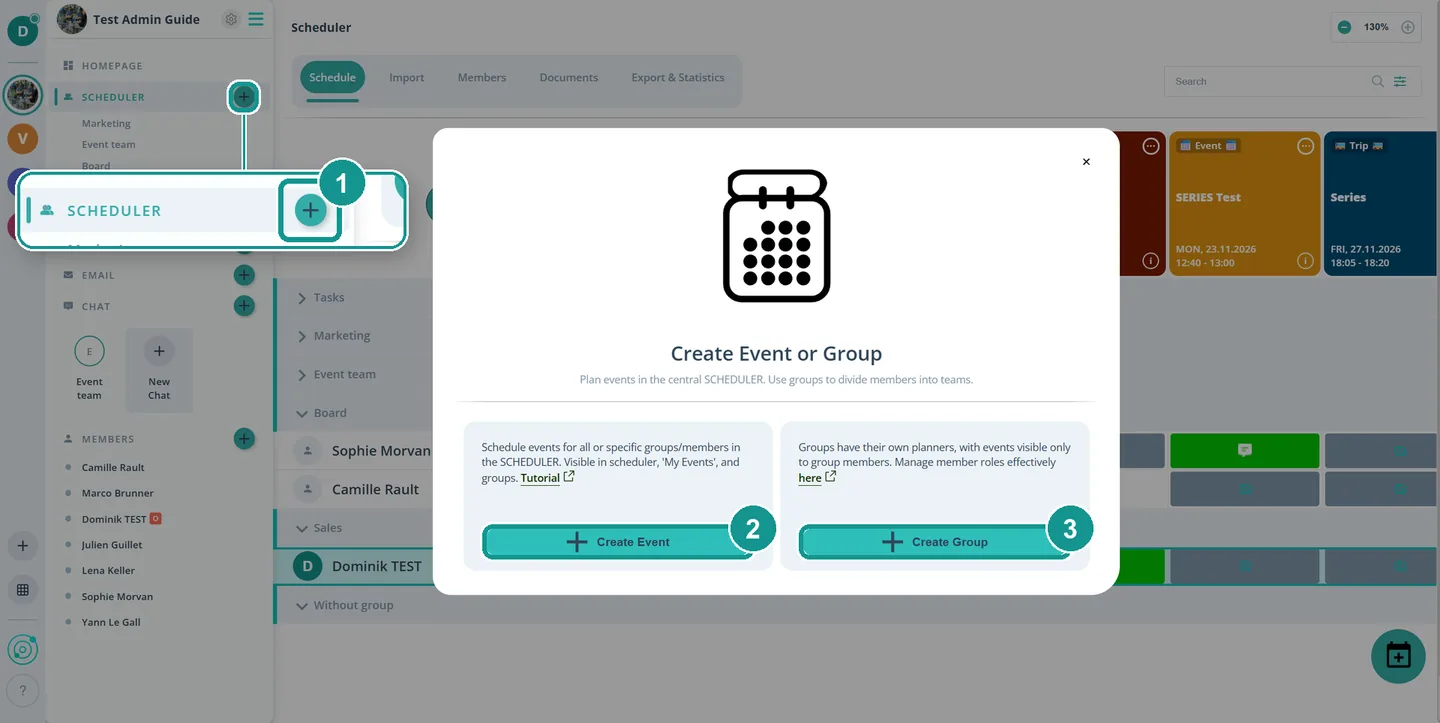
In the Scheduler, with ➕ (1). Then choose Create Event (2) or Create Group (3). The Create tile in the Scheduler takes you straight to a new event. Each group gets its own group planner, and only its members see its events. You create single events and series in the same window. More: Scheduling in Gumb 🗓️
Who can do what?
- Owner Each community has exactly one. The owner manages the subscription and is the only one who can delete the community.
- Admins edit all settings, see all groups and can respond for other members.
- Group leaders schedule events for their own group.
- Members respond to events.
More: Roles and permissions 🛂
How do I reach my members?
- Push message a short update straight to their phones, for individuals, groups or everyone. Create a Push Message 📢
- Email longer updates with attachments, also for the people invited to a specific event. Send Email to Members 📧
- Chat one-on-one messages and chat rooms with selected members. Chat & Chat Rooms 💬
You send push messages and emails from the web app.
Which reports are there?
In the Scheduler, the Export & Statistics tab has two exports. The calendar report has one row per event, with responses, tasks and comments. The attendance control report has one row per person and event, and it also works for J+S in Switzerland. More: Export Attendance and Statistics 📊
Who pays for Gumb?
Only the owner, in the web app under Profile > Subscription. Admins and members use Gumb for free. More: Subscription & Billing: Overview 💶
To change the owner: Transfer Ownership 🤝🏼
Are there videos about Gumb?
Yes. Short clips in German and English are on our YouTube channel. Some videos still show the older interface, the guides here show the current version. More: Video Tutorials 🎥
What should I send new members?
These guides help with the first login: Create your account 💁🏼, How Gumb Works 🚀 and, for families, For Parents: Kids' Accounts 👨👩👧👦.
All admin guides
- Customize Your Home Page ✏️
- Create Event Types 🎫
- Response Options 🟢🟡🔴
- Create Tasks 📋
- Automate Notifications 📳
- Groups & Communities 👥
- Scheduling in Gumb 🗓️
- Import Events from Excel ⬆️
- Create a Poll or Vote 📊
- Add members 👤➕
- Roles and permissions 🛂
- Member Administration 👤⚙️
- Change the order of members 🔄
- Edit Member Profiles 👤🛠️
- Member Matrix 👤🔀
- Create a Push Message 📢
- Send Email to Members 📧
- Chat & Chat Rooms 💬
- Storing files and documents 📂
- Export Attendance and Statistics 📊
- J+S Attendance Control in Gumb 📊