
For Admins
Storing files and documents 📂
You store files in Gumb in two places: under Documents in the left sidebar and directly on an event. Files for one specific occasion go on the event, everything that stays goes into Documents.
Where do I find the documents?
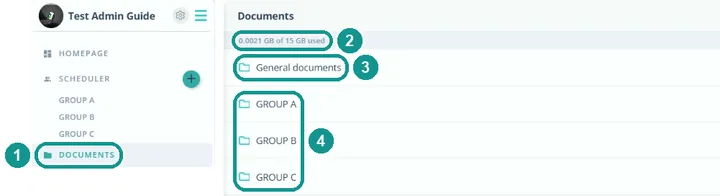
Click Documents in the left sidebar (1). At the top you see how much storage you use (2). Below are the General documents (3) and one folder per group (4). You can also open the same area from the Scheduler or a group scheduler with the Documents tab.
Who sees which folder?
- General documents: every member of your community. The right place for bylaws, the annual program or house rules.
- Group folders: only the members of that group. Gumb creates a folder for each group automatically. Anyone who joins a group sees its folder right away.
- Owners and admins see every folder.
How do I upload a file?
- Open the folder, e.g. General documents.
- Click Choose file (1) or drag the file into the field.
- The file shows up under Uploaded files (2). The trash can (3) deletes it again.
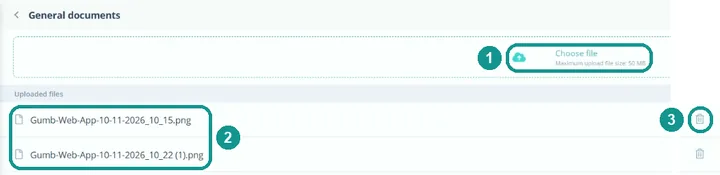
Good to know: A file can be up to 50 MB.
How do I attach a file to an event?
On the event, members find the files right where they reply anyway: the sheet music for the concert, the agenda for the meeting.
- On the event tile, click ⋯ and choose Documents.
- The Update event window opens on the folder tab (1).
- Upload a new file with Choose file (2) or drag it into the field.
- Attach files (3) also lists every file from your documents. Check each file that belongs to this event.
- Click Update event.
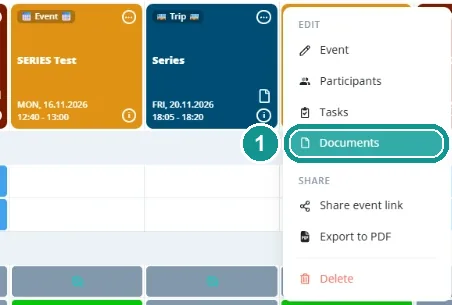
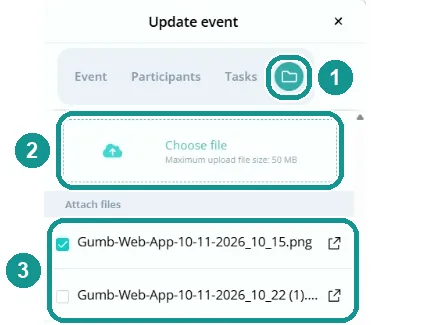
You also get to this tab by clicking the event and then Edit at the bottom. Group leaders can attach files to their own group events the same way.
Good to know: If a new file doesn't show up on the event right away, reload the page.
How do members see the files?
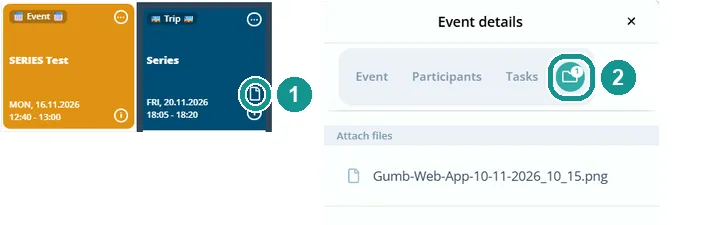
An event with files shows a document icon on its tile (1). When a member opens the event, the folder icon shows how many files are attached (2). One click downloads the file.
How do I send a file to specific members?
- On the event: invitees have the files in front of them as soon as they open the event. Nothing gets buried in an inbox.
- By email: The paperclip attaches a file from your device, Attach community documents attaches one from your documents. More: Email feature 📧
Who can upload files?
Owners and admins everywhere. Group leaders in their group's folder and on their group events. Members see every file they have access to and can download it. More: Roles & permissions 🛂
How do we keep the files organized?
Give files clear names with a date or occasion, e.g. "2026_Concert_Program.pdf". That keeps them easy to find, even without subfolders. Custom subfolders and per-folder permissions aren't available yet. Link important files on your homepage as well: Design your homepage ✏️